
Site Verification & Troubleshooting
After connecting your website to SureFeedback Cloud, it is important to verify that the connection is working correctly. This guide will help you confirm that your site is properly connected and provide solutions to common issues that may prevent the feedback tool from loeeading.
Verifying Your Site Connection
Once your site has been connected, you can confirm the connection through your SureFeedback dashboard.
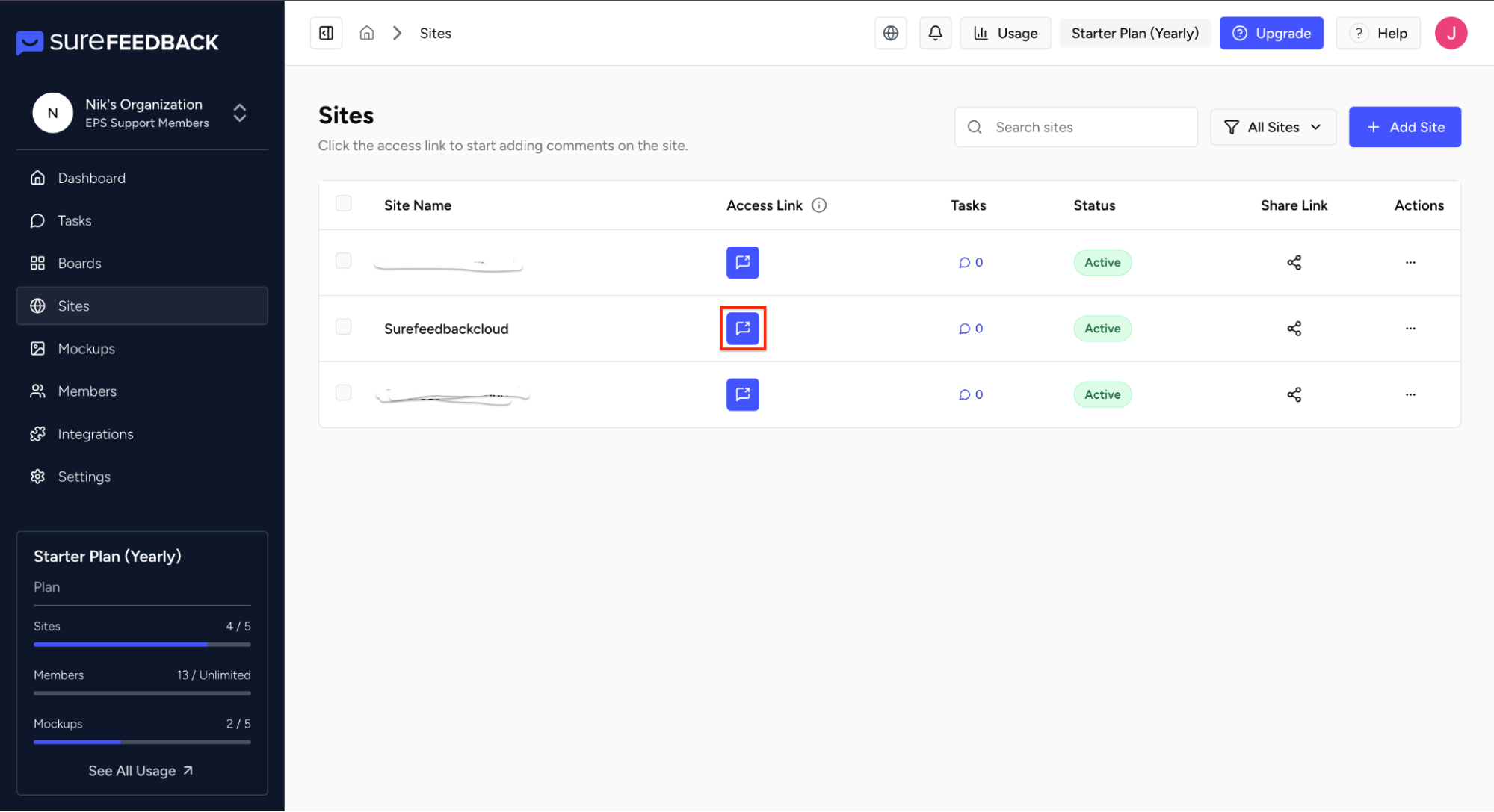
- Log in to your SureFeedback Cloud account.
- Navigate to the Sites section in your dashboard.
- Locate the website you recently connected.
- Click the Access Link to open the site with the SureFeedback interface enabled.
If the connection is successful, the SureFeedback feedback tool should appear on your website.
Checking if the Feedback Tool Loads
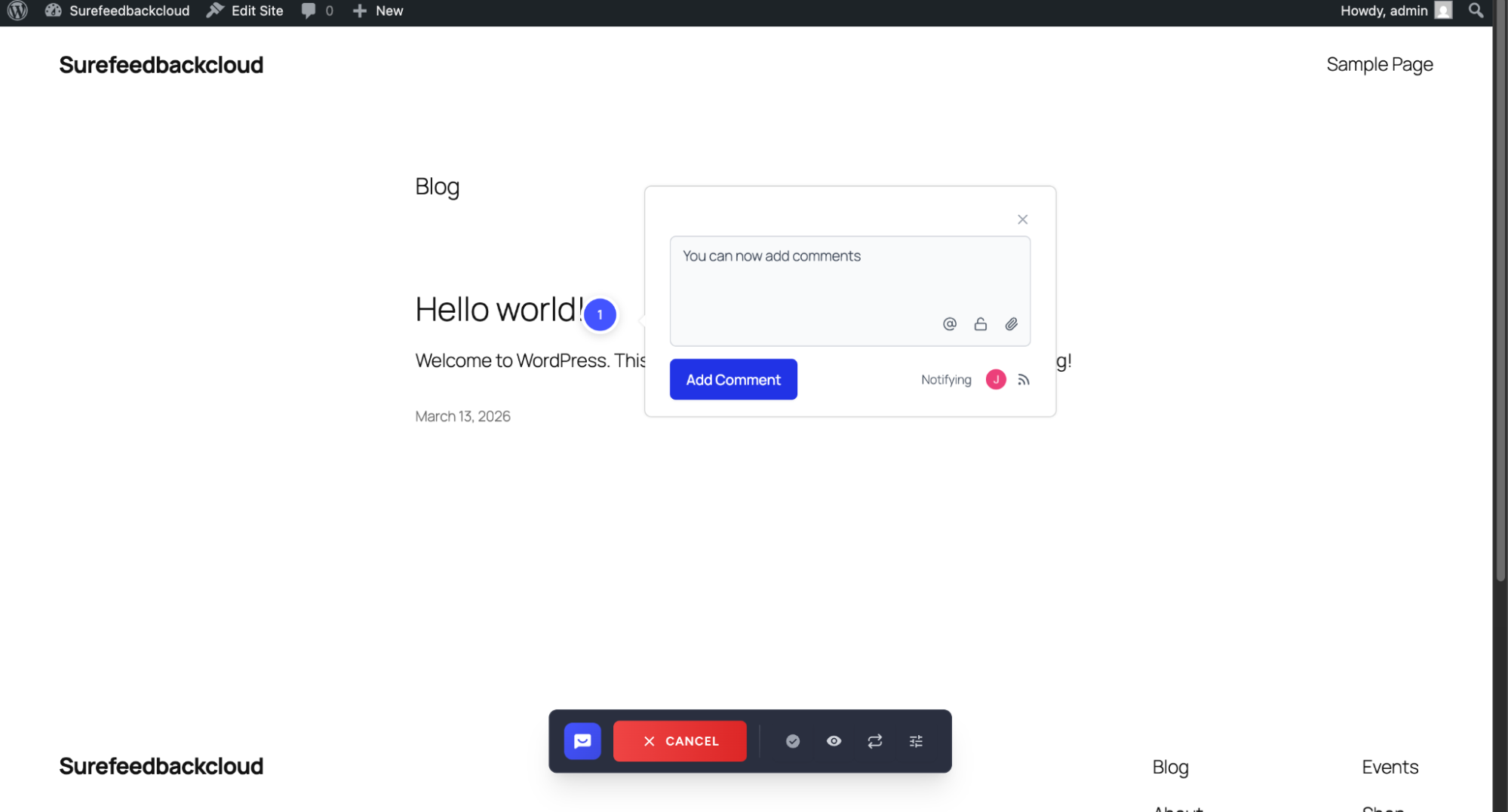
After opening your website using the Access Link:
- The SureFeedback interface should appear on the page.
- You should be able to click anywhere on the page to leave feedback.
- The feedback sidebar should be visible for comments and tasks.
If the tool loads correctly, your site is successfully connected.
Common Connection Issues
If the feedback tool does not appear, the issue may be related to one of the following:
Plugin Not Installed or Activated (WordPress)
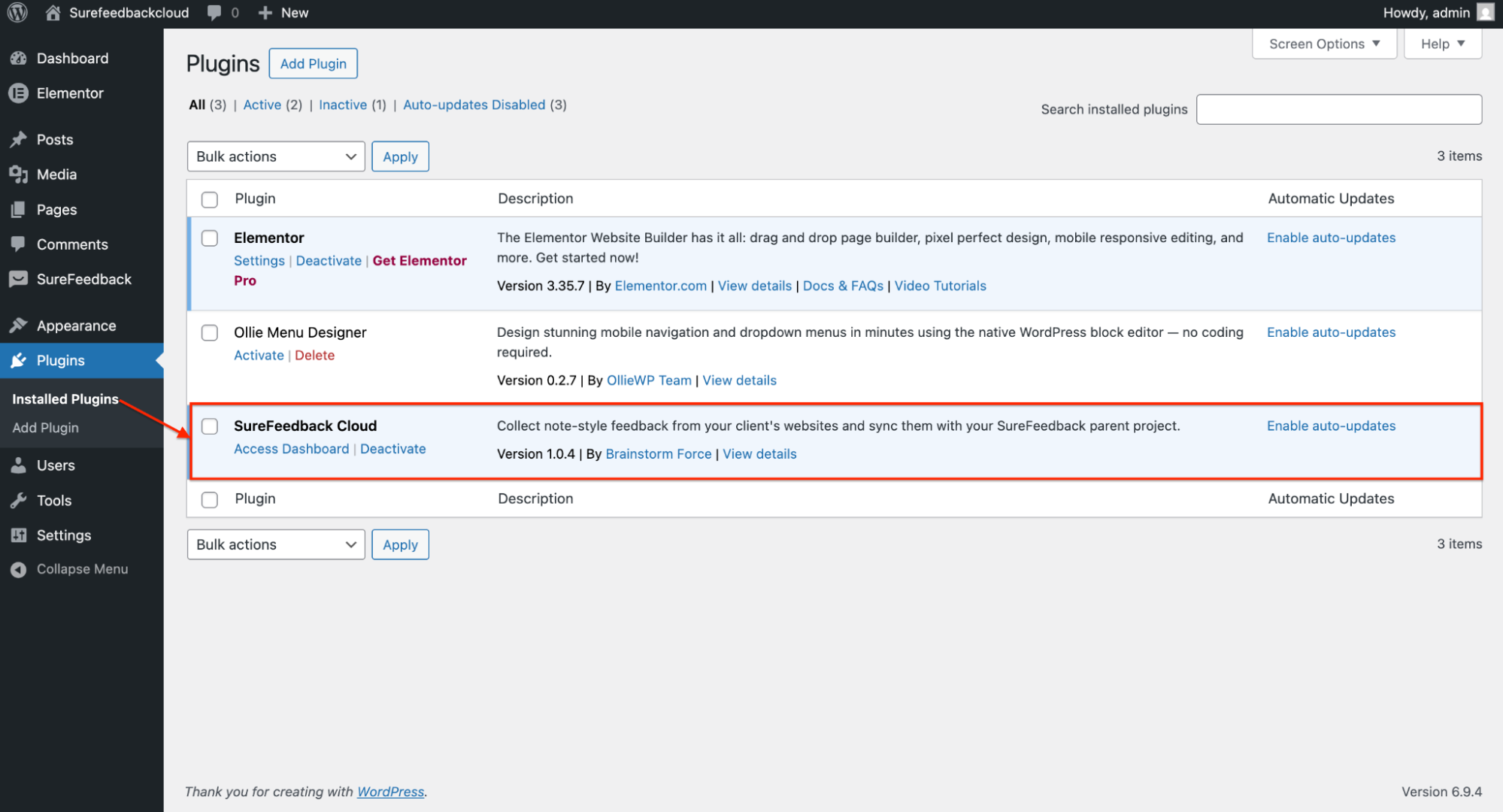
For WordPress sites, make sure the SureFeedback plugin is properly installed and activated.
- Log in to your WordPress Dashboard.
- Go to Plugins → Installed Plugins.
- Confirm that the SureFeedback plugin is installed and activated.
Script Not Added Correctly (Non-WordPress Sites)
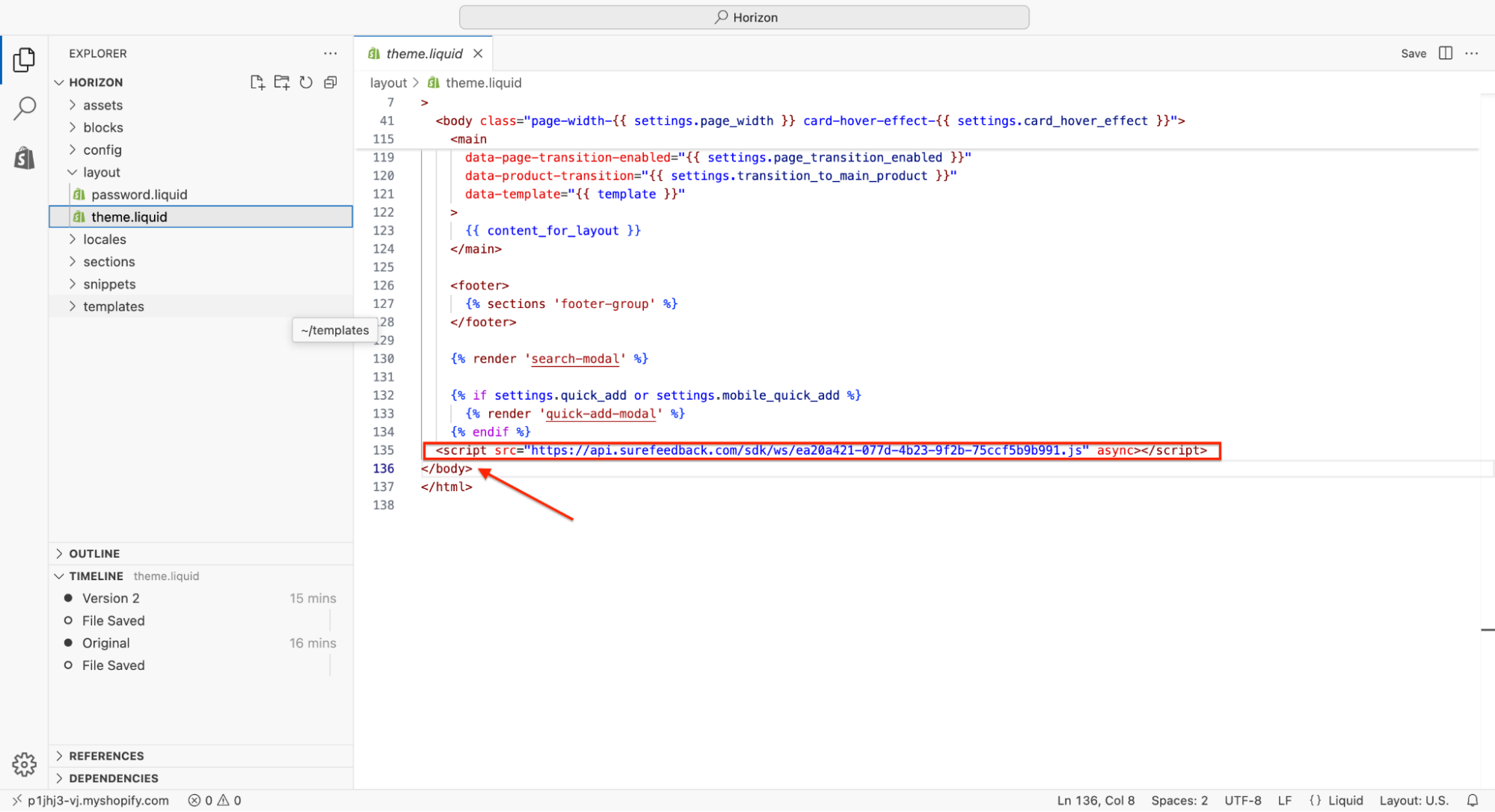
If you connected a non-WordPress site using the script method:
- Verify that the SureFeedback JavaScript snippet was added to your website.
- Make sure the script is placed before the closing </body> tag.
Caching or CDN Issues
Sometimes caching can prevent the feedback tool from loading.
Try the following:
- Clear your website cache
- Clear your browser cache
- Purge your CDN cache (if using services like Cloudflare)
Security or Firewall Blocking the Script
Some hosting providers or security plugins may block external scripts or plugin installations.
If this happens:
- Temporarily disable security or firewall plugins
- Check hosting firewall settings
- Ask your hosting provider to allow the SureFeedback script
Still Having Issues?
If you are still unable to verify your site connection:
- Double-check that the site URL matches the one added in SureFeedback.
- Reconnect the site using the Automatic or Manual connection method.
- Contact SureFeedback Support and provide the following information:
- Your website URL
- Connection method used
- Screenshots of the issue
If the site does not connect after installing the plugin:
Next Steps
Once your site is successfully verified, you can:
- Invite clients and team members to leave feedback
- Review comments directly on the website
- Manage tasks and discussions from your SureFeedback Cloud dashboard
We don't respond to the article feedback, we use it to improve our support content.