
How to Connect a WordPress Site – Automatic Setup
Connecting your WordPress website automatically is the fastest way to start collecting feedback with SureFeedback Cloud. This method installs and activates the SureFeedback plugin directly on your WordPress site without needing manual upload.
Before You Begin
Make sure you have the following:
- Access to your SureFeedback Cloud dashboard
- Administrator access to your WordPress website
- Your WordPress admin login credentials
Step 1: Log in to SureFeedback Cloud
- Log in to your SureFeedback Cloud account.
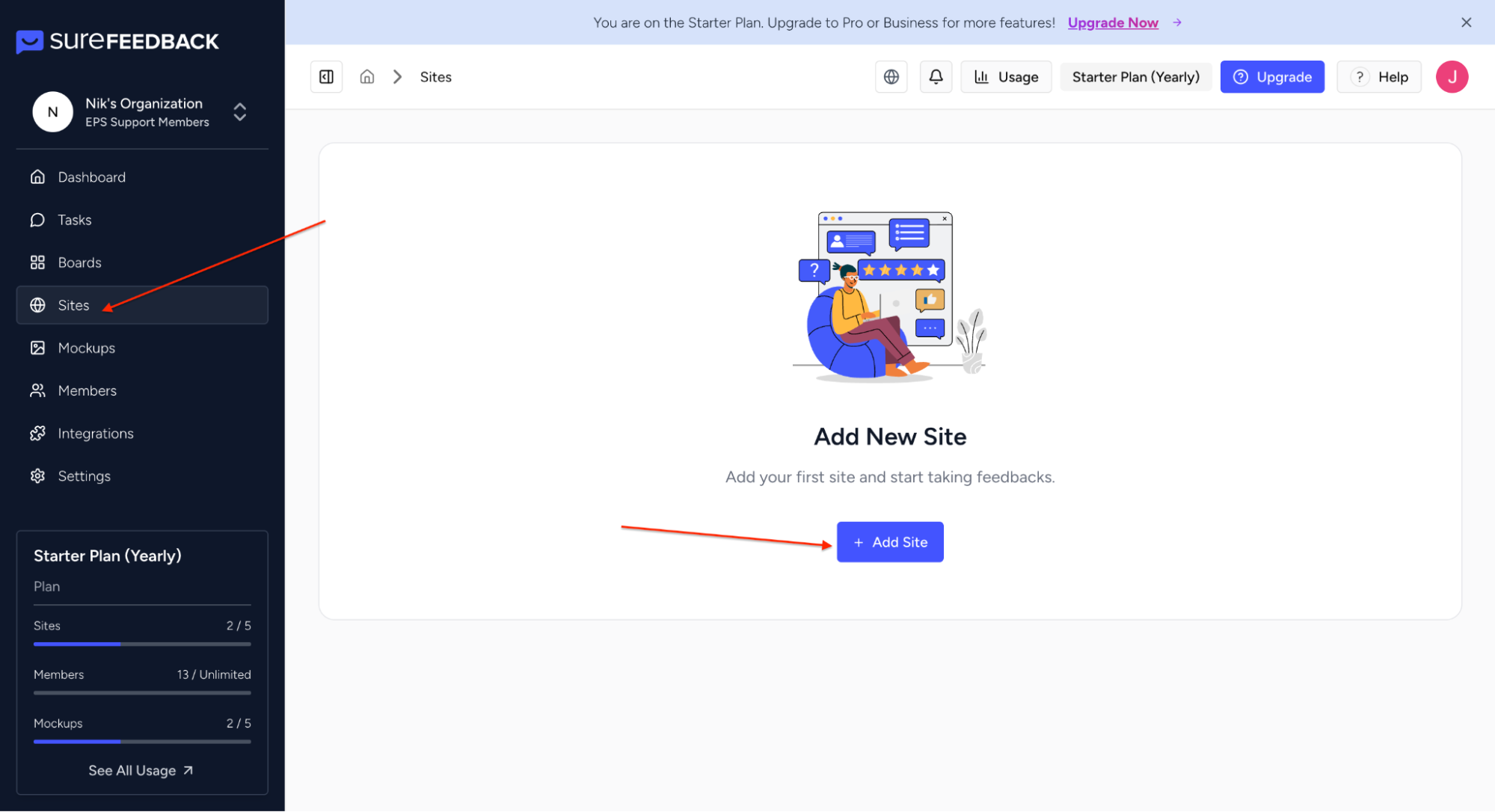
- From the dashboard, navigate to the Sites section.
- Click Add New Site.
Step 2: Enter Your Website Information
- Enter the URL of your WordPress website.
- Select WordPress as the platform.
- Continue to Integration.
Step 3: Connect your WordPress site
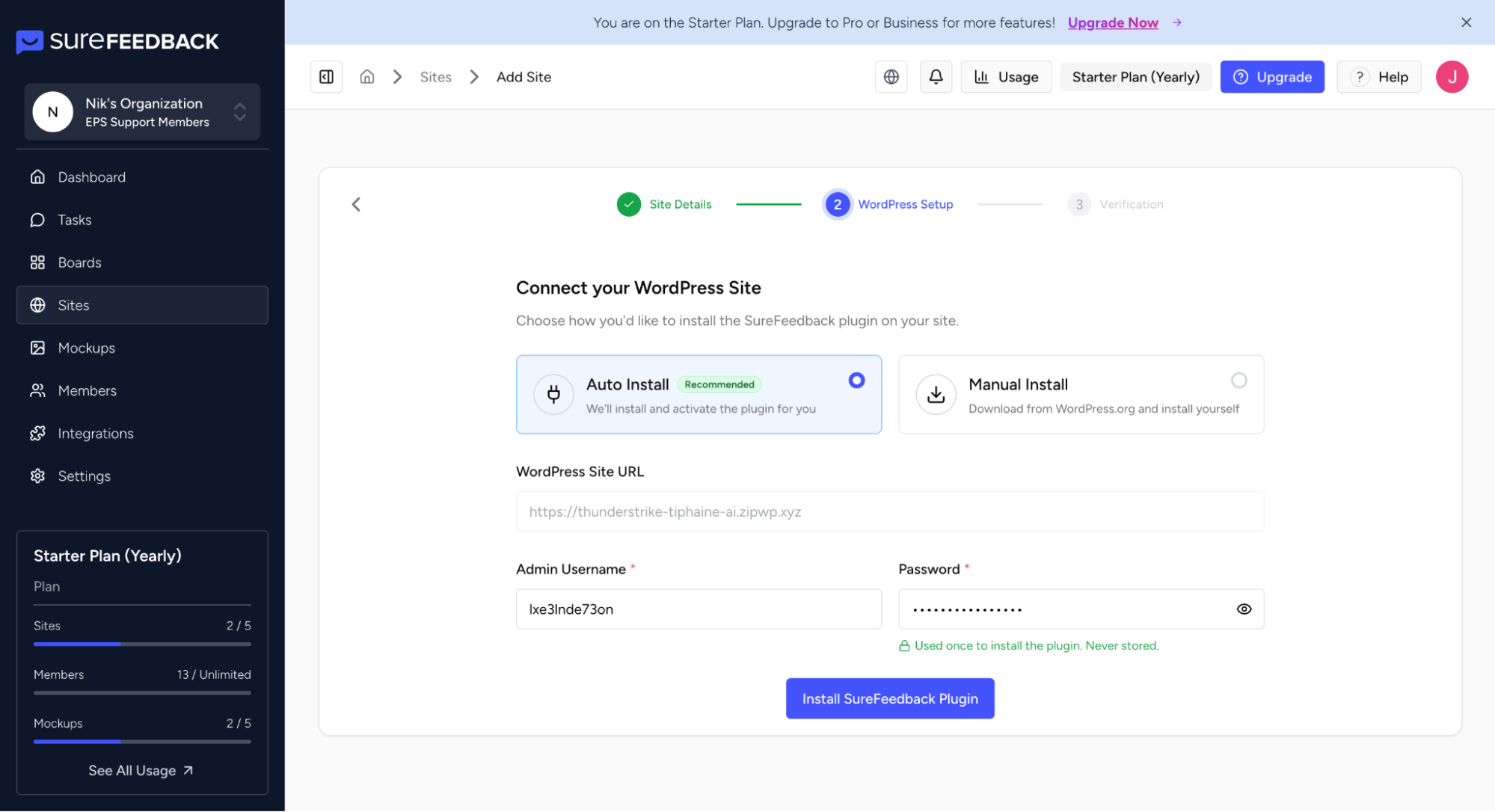
To allow SureFeedback to automatically install the plugin:
- Select Auto Install
- Enter your WordPress Site URL.
- Enter your WordPress Site Username and Password.
SureFeedback will now attempt to automatically install and activate the SureFeedback plugin on your website.
Step 4: Wait for the Installation to Complete
The system will now:
- Install the SureFeedback plugin on your WordPress site
- Activate the plugin automatically
- Connect your site to your SureFeedback Cloud workspace
This process usually completes within a few seconds.
Step 5: Confirm the Connection
Once the setup is complete:
- You can begin collecting visual feedback directly on your site
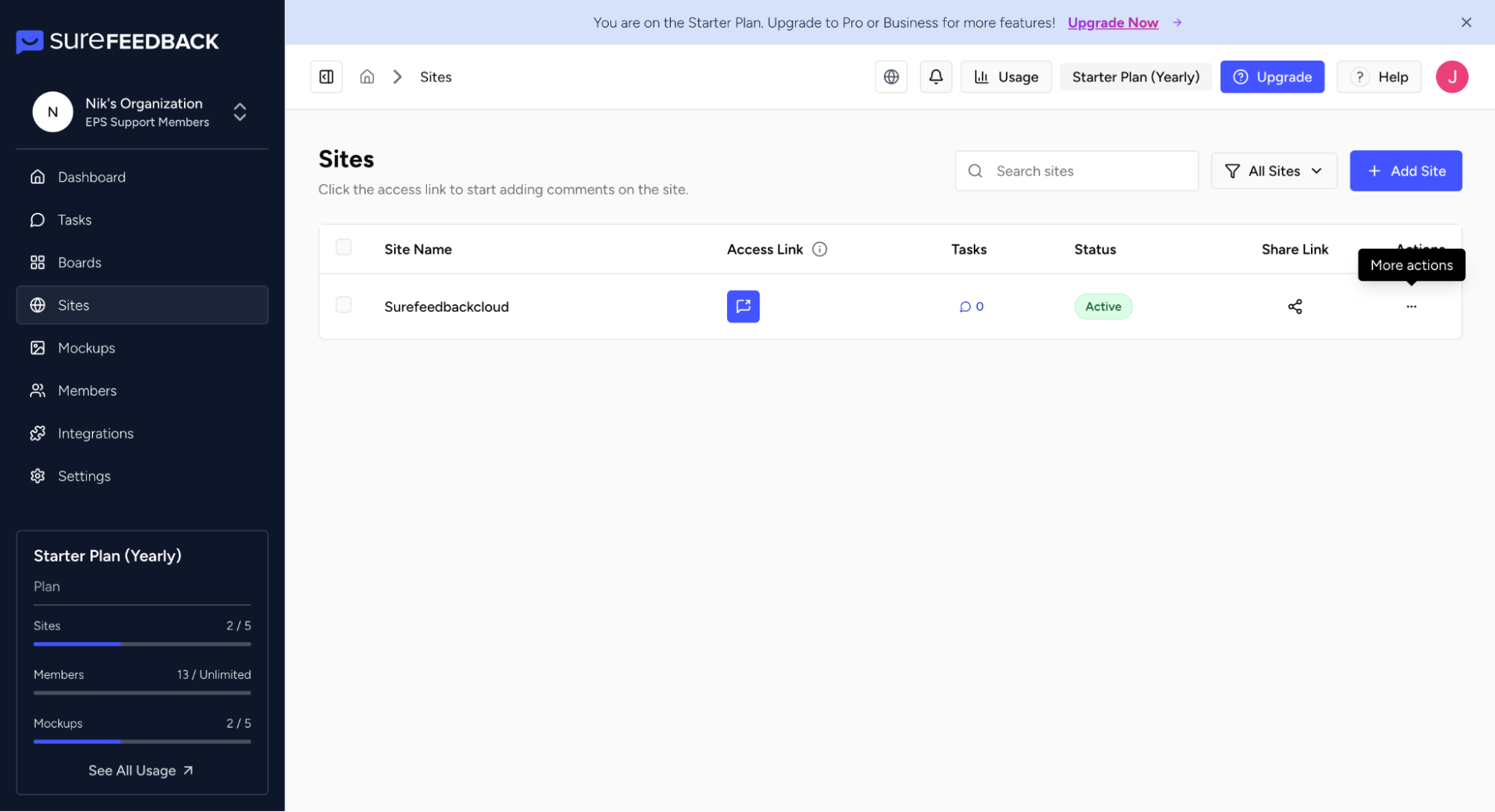
- Your site will appear in the Sites Dashboard
- You can open the site using the Access Link
Troubleshooting
Automatic Connection Failed
If the automatic connection does not complete successfully, possible reasons include:
- Incorrect WordPress admin credentials
- Security or firewall restrictions from your hosting provider
- WordPress security plugins blocking external installations
If this happens, you can connect your site using the Manual Connection method by installing the SureFeedback plugin directly in WordPress.
Next Steps
After your site is connected, you can:
- Invite clients or team members to leave feedback
- Use the Access Link to open the feedback interface
- Manage comments and tasks from the SureFeedback dashboard
We don't respond to the article feedback, we use it to improve our support content.