
- Quick Start Guide
- Signing Up & Creating Your Account
- SureFeedback Cloud Setup & Workflow Guide
- Plugin Set Up Guide
- How to Connect a WordPress Site – Manual Setup
- How to Connect a Non-WordPress Site
- How to Connect a WordPress Site – Automatic Setup
- Site Verification & Troubleshooting
- What Are Roles in SureFeedback Cloud?
- How to Invite Team Members & Clients
- Understanding Organizations (and How to Create One)
- How to Add Comments on Your Site After Successful Connection
- How to Use Private Comments
- Understanding Workspaces (and How to Create One)
- SureFeedback Cloud – Frequently Asked Questions (FAQ)
What Are Roles in SureFeedback Cloud?
In SureFeedback Cloud, Roles define what a user can see and do inside your account.
They help you control access, manage permissions, and ensure that team members and clients only have access to the projects they need.
Roles are applied at the workspace level, giving you flexibility to manage access across different projects.
Why Roles Matter
Not everyone in your team needs the same level of access.
For example:
- A client may only need to leave feedback
- A designer or developer may need to manage tasks
- A project manager or admin may need full control
Roles allow you to define these permissions clearly and avoid confusion.
Role Hierarchy
SureFeedback Cloud uses a simple role structure:
- Owner
- Member
Additionally, you can assign:
- Workspace Admin (permission level within a workspace)
Owner
The Owner has the highest level of access within assigned workspaces.
They can:
- Manage workspace settings
- Add or remove team members
- Assign roles and permissions
- View and manage all sites and mockups
- Create, edit, assign, and delete tasks
- Access all data within the workspace
Use this role for:
- Team leads
- Project managers
- Account owners
Member
A Member is a standard user who collaborates within assigned workspaces.
They can:
- Access assigned workspaces
- View sites and mockups
- Create and respond to tasks
- Add attachments and comments within tasks
- Update task statuses
They cannot:
- Manage workspace settings
- Add or remove members (unless given additional permissions)
Use this role for:
- Designers
- Developers
- Clients
- Reviewers
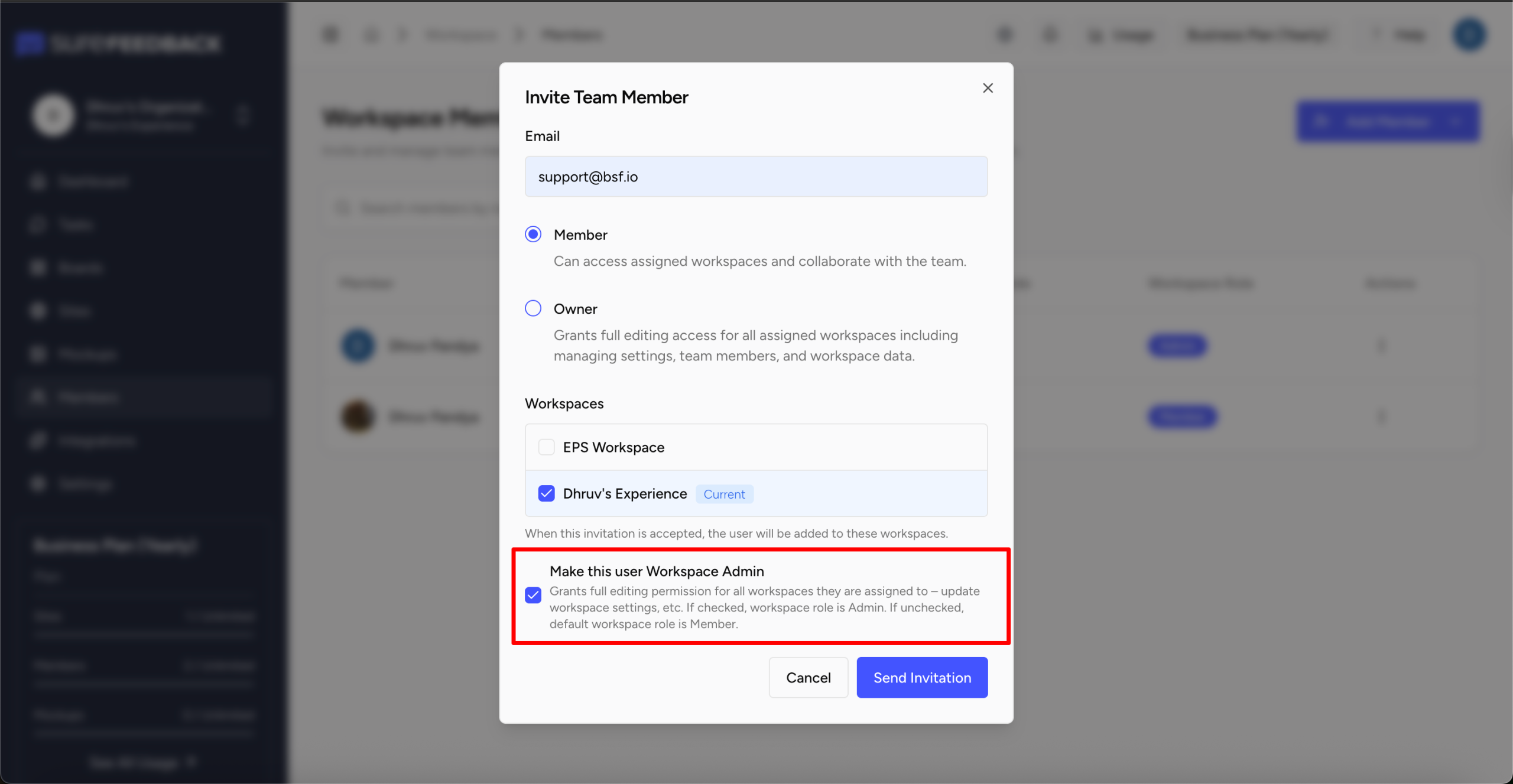
Workspace Admin (Optional Permission)
A Workspace Admin is not a separate role, but an additional permission you can assign to a user within a workspace.
When enabled, the user gets full control over that specific workspace.
They can:
- Manage workspace settings
- Invite or remove members
- Control access and permissions
- Manage all sites, mockups, and tasks
This is useful when:
- You want to give control of a specific project to a team member
- A client needs admin-level access to their workspace
- You’re delegating project ownership
How Roles Work with Workspaces
Roles are always tied to workspace access.
This means:
- A user can be part of multiple workspaces
- They can have different permissions in each workspace
For example:
| User | Workspace A | Workspace B |
| John | Owner | Member |
| Sarah | Member | Workspace Admin |
This gives you flexibility to control access across projects.
Assigning Roles When Inviting Users
When you invite a user, you can:
- Select their role (Owner or Member)
- Choose which workspaces they can access
- Optionally enable Workspace Admin
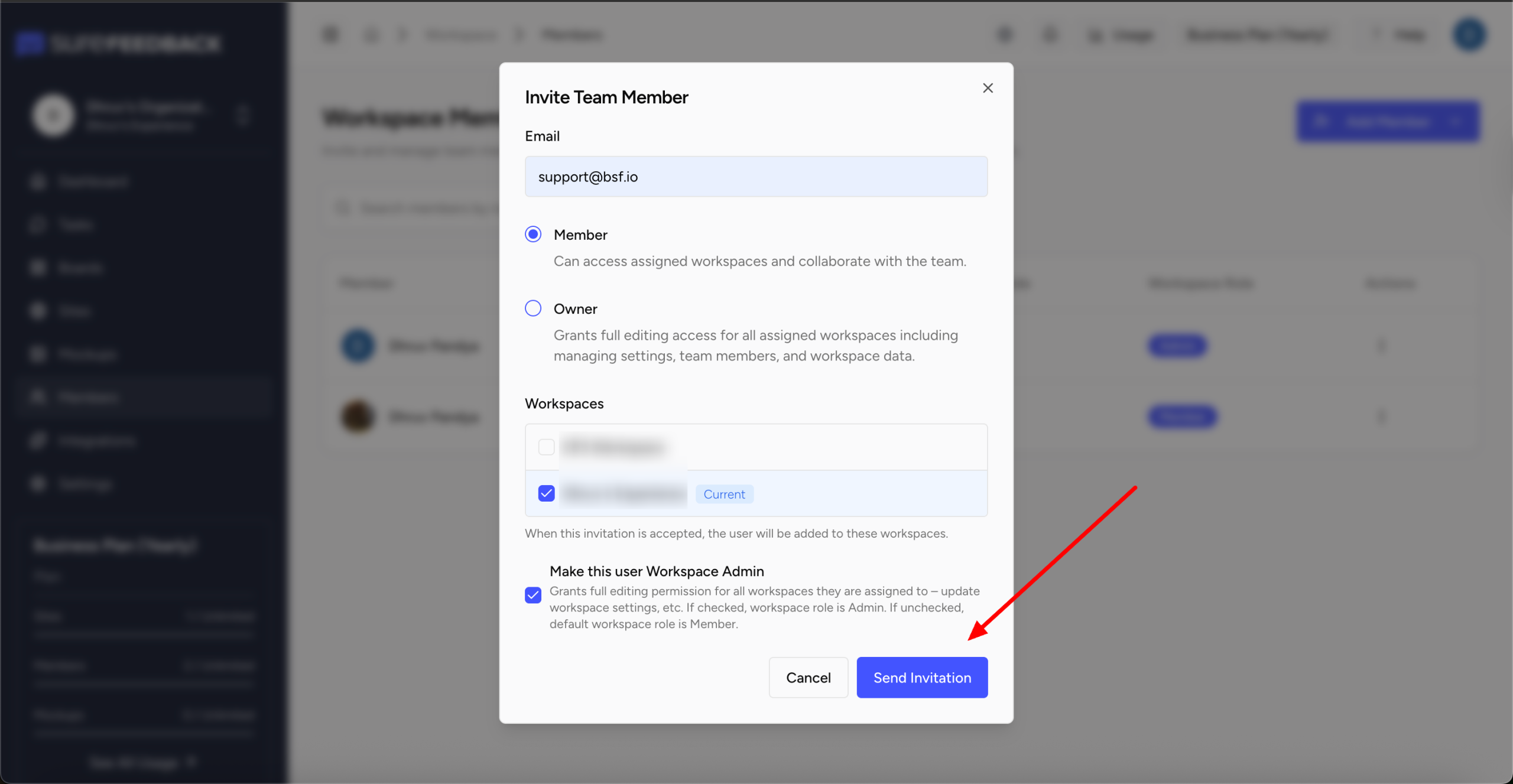
You can update these permissions later if needed.
Summary
Roles in SureFeedback Cloud help you:
- Control who can access what
- Manage team collaboration efficiently
- Keep projects secure and organized
By assigning the right roles, you ensure that everyone can contribute effectively without unnecessary access.
We don't respond to the article feedback, we use it to improve our support content.