
- Quick Start Guide
- Signing Up & Creating Your Account
- SureFeedback Cloud Setup & Workflow Guide
- Plugin Set Up Guide
- How to Connect a WordPress Site – Manual Setup
- How to Connect a Non-WordPress Site
- How to Connect a WordPress Site – Automatic Setup
- Site Verification & Troubleshooting
- What Are Roles in SureFeedback Cloud?
- How to Invite Team Members & Clients
- Understanding Organizations (and How to Create One)
- How to Add Comments on Your Site After Successful Connection
- How to Use Private Comments
- Understanding Workspaces (and How to Create One)
- SureFeedback Cloud – Frequently Asked Questions (FAQ)
How to Invite Team Members & Clients
SureFeedback Cloud is built for collaboration. You can invite team members, clients, or external reviewers to your workspace so they can view projects, create tasks, and participate in feedback.
Each user can be assigned:
- A Role (Owner or Member)
- Access to specific Workspaces
- Optional Workspace Admin permissions
This gives you full control over who can access what.
When Should You Invite Users?
You may want to invite users when:
- A client needs to review a website or mockup
- A developer or designer needs to work on tasks
- A project manager needs to oversee progress
- A team member needs access to specific workspaces
You can invite as many users as needed and control their access at any time.
How to Invite a New Member
Follow these steps to invite a user.
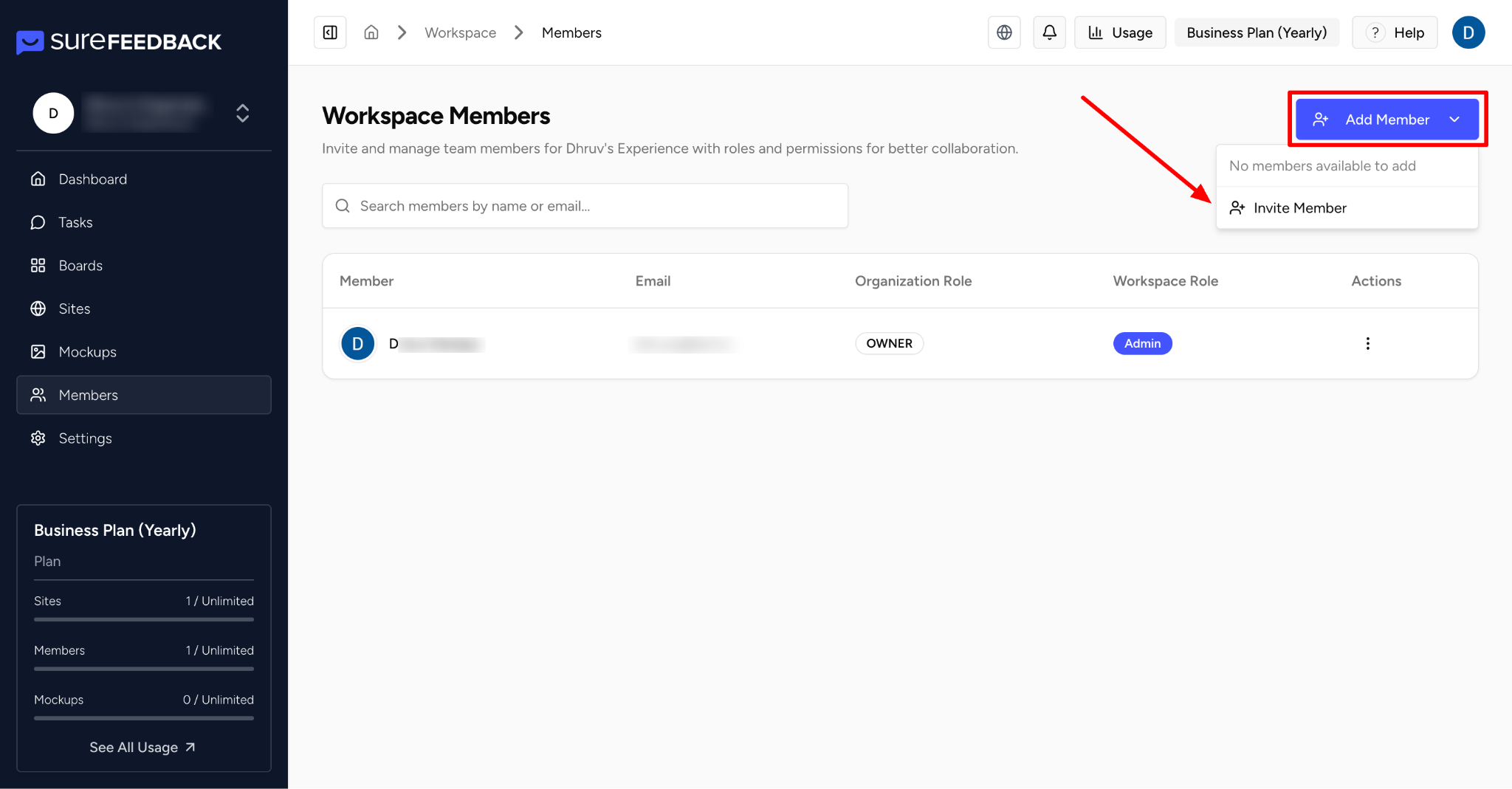
Step 1: Go to the Members Section
From your dashboard:
- Navigate to Members
- Click Add Member
Step 2: Enter User Details
In the invite form:
- Enter the user’s email address
- (Optional) Add additional details if available
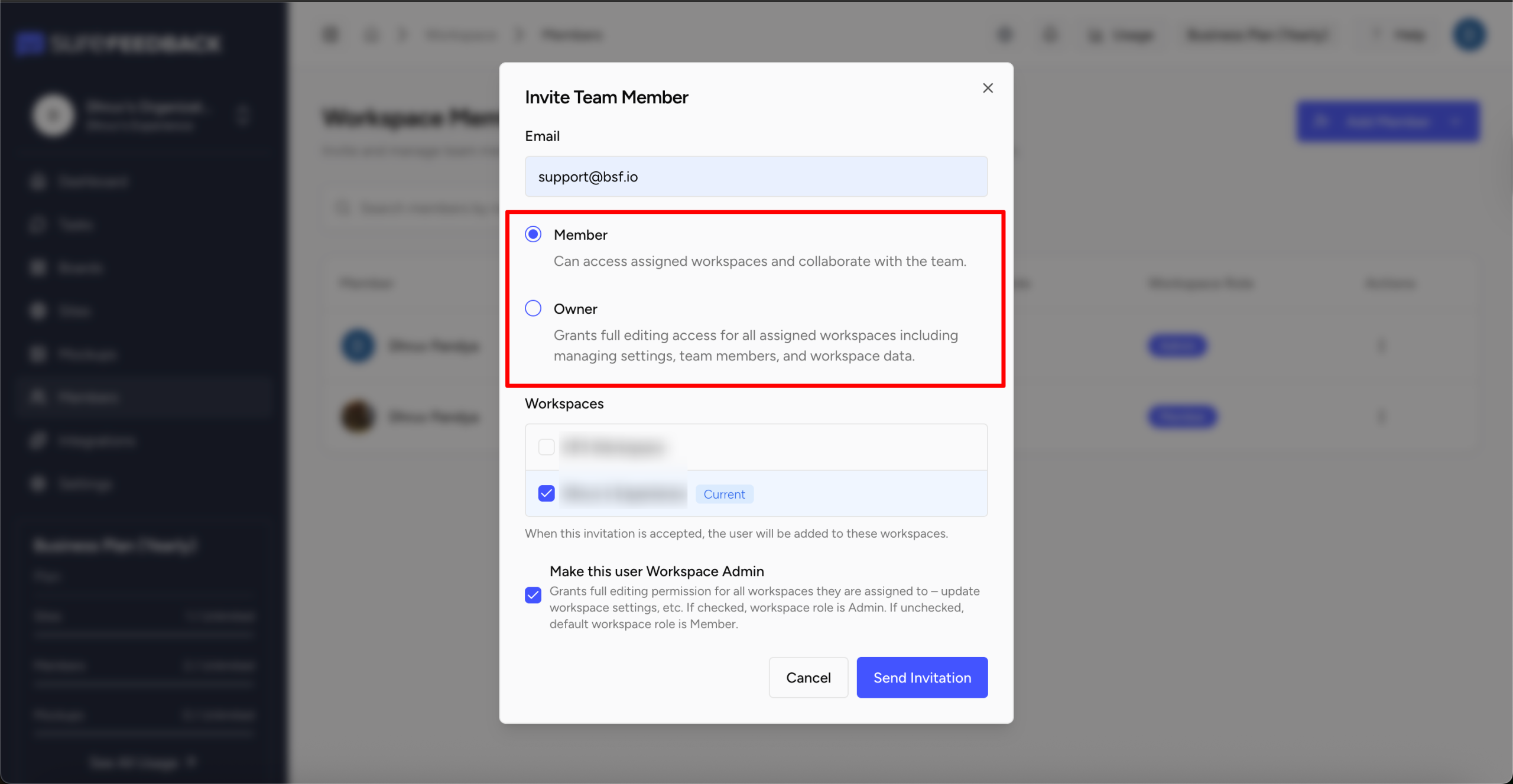
Step 3: Select Role
Choose the appropriate role:
- Owner → Full control over assigned workspaces
- Member → Can collaborate on tasks and feedback
👉 For most users (especially clients), Member is recommended.
Step 4: Assign Workspaces
Select which workspaces the user should have access to.
- Users will only see data inside the workspaces they are assigned
- You can assign one or multiple workspaces
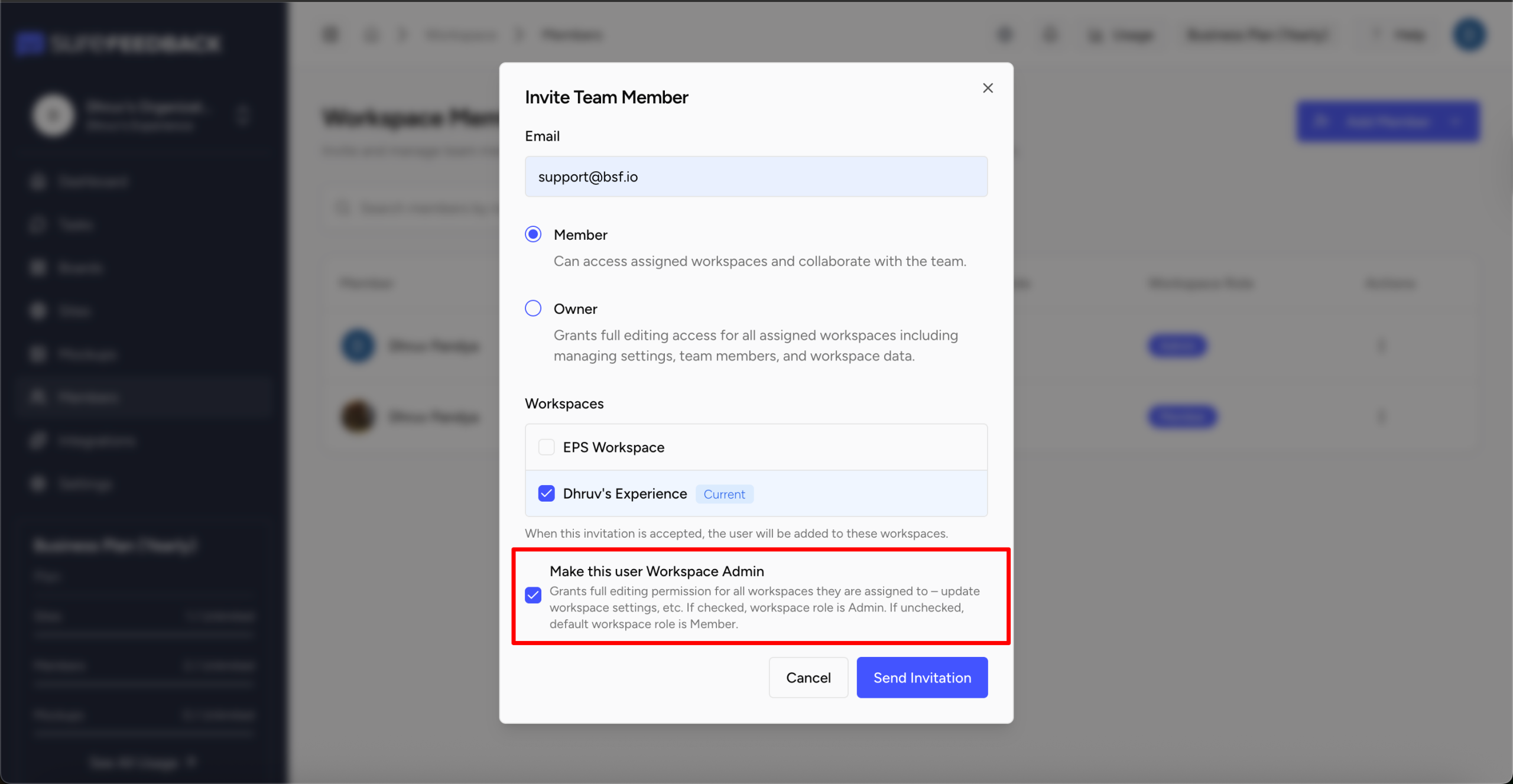
Step 5: (Optional) Enable Workspace Admin
You can enable Workspace Admin if the user needs full control over the selected workspace(s).
This allows them to:
- Manage members
- Edit workspace settings
- Control access and permissions
👉 Only enable this for trusted users.
Step 6: Send Invitation
Click Send Invitation.
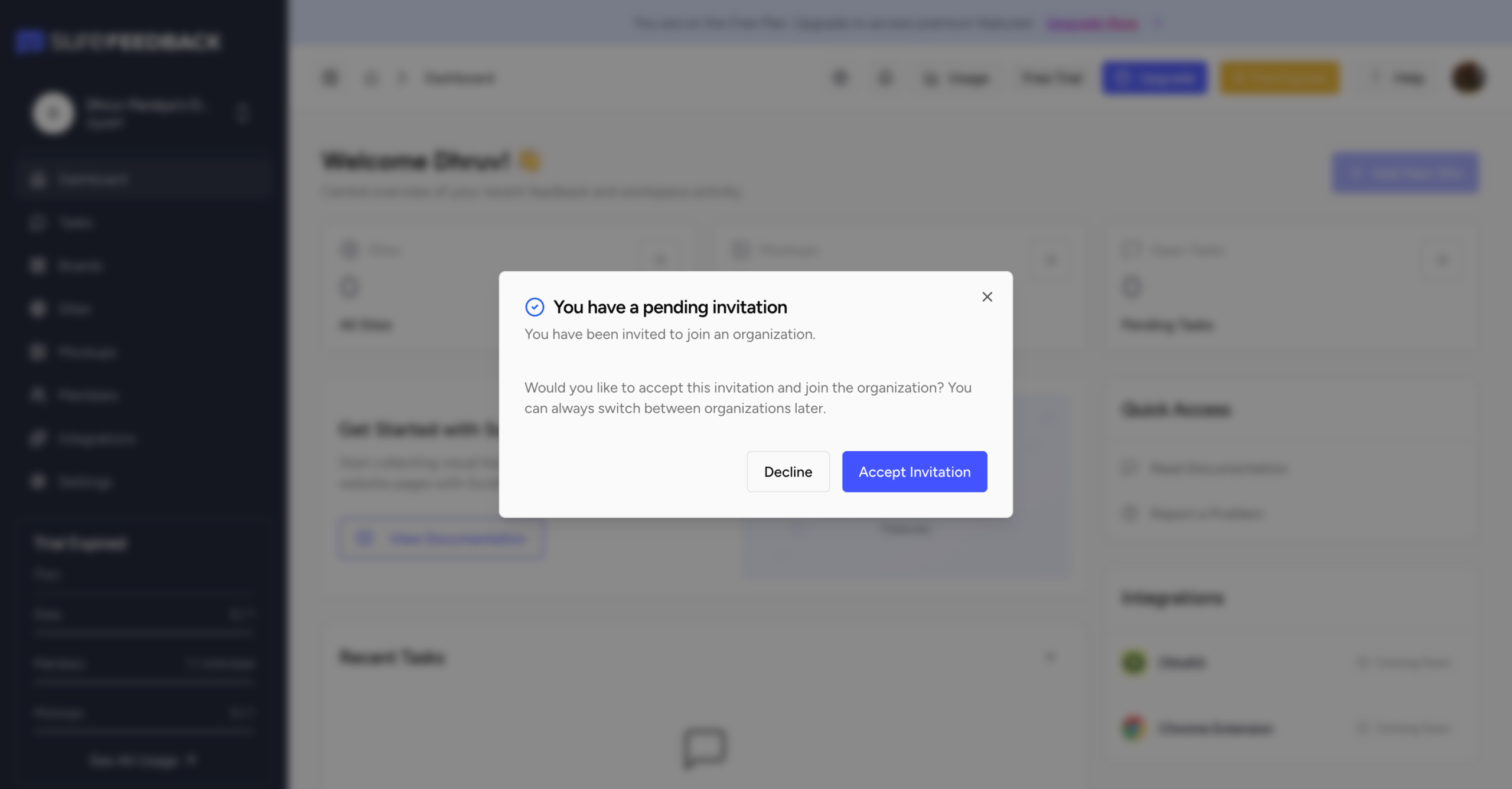
The user will receive an email with a link to join your organization and access the assigned workspace(s).
What Happens After Inviting?
Once invited:
- The user appears in the Members list
- After acceptance, they gain access to assigned workspaces
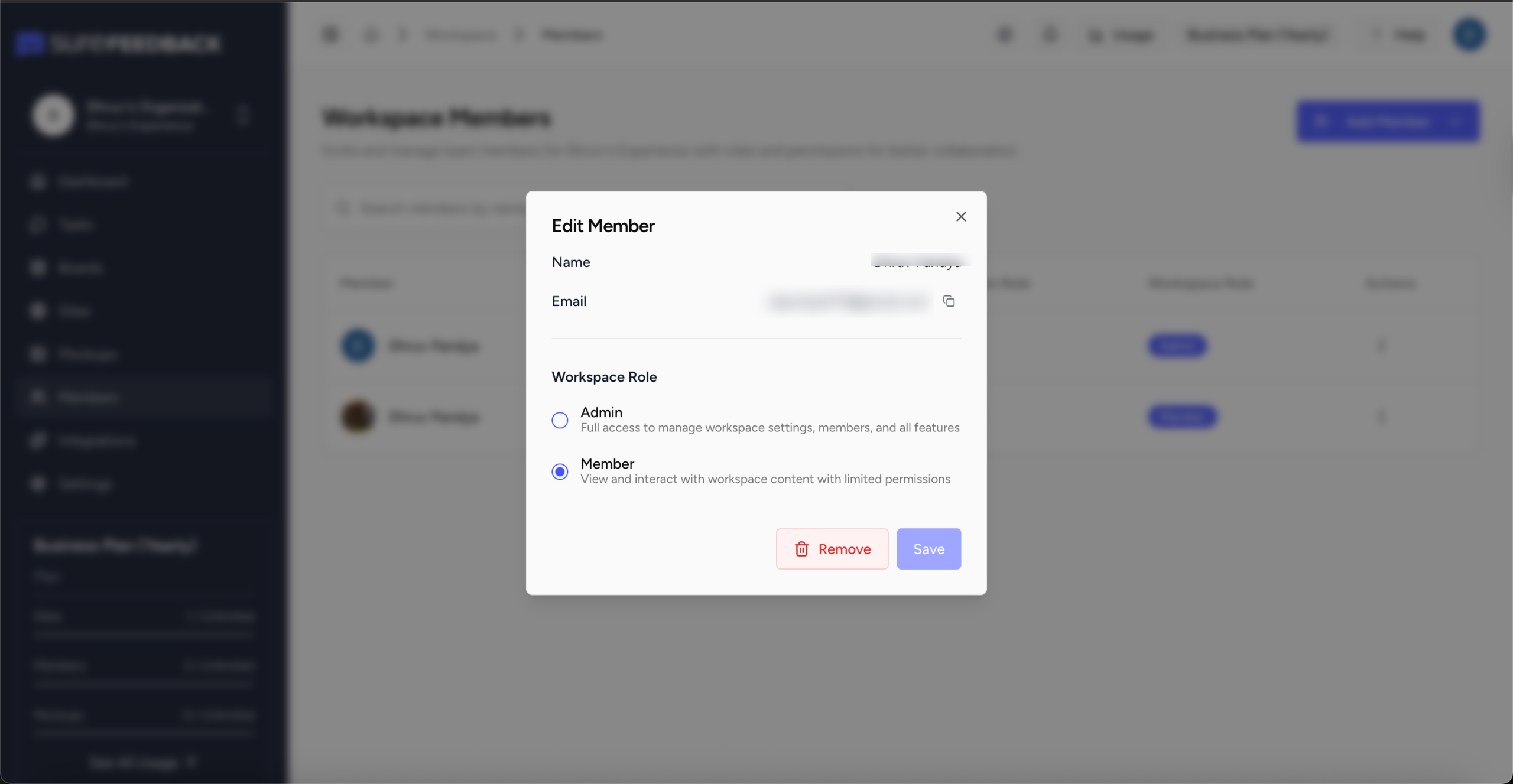
Editing Member Permissions
You can update a user’s access anytime.
To edit a member:
- Go to Members
- Click on the three dots, under the actions tab for that particular user
- Edit member and here you can update the Workspace role of the user
Changes are applied immediately.
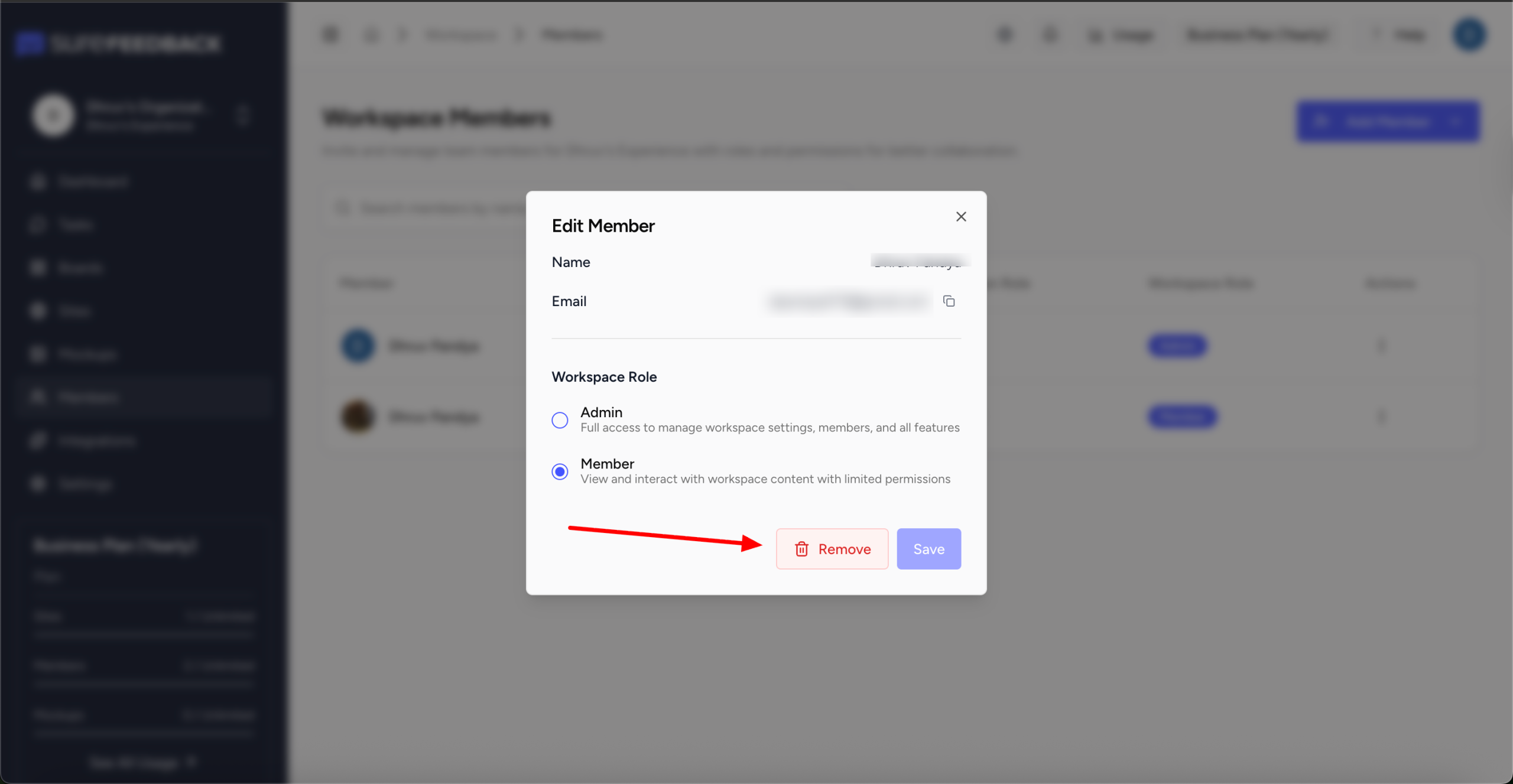
Removing a Member
If a user no longer needs access:
- Go to Members
- Click on the three dots, under the actions tab for that particular user
- Edit member and click on Remove to remove the user!
This will revoke their access to all assigned workspaces.
Best Practices for Inviting Users
To keep your workspace secure and organized:
- Invite clients as Members, not Owners
- Only give access to relevant workspaces
- Use Workspace Admin sparingly
- Regularly review and clean up inactive users
This ensures smooth collaboration without unnecessary access.
Tip: Sharing Access Without Adding Users
If you only want someone to leave feedback without joining your workspace, you can share the Access Link.
This allows them to:
- Open the site
- Create tasks directly on the page
Without needing full account access.
We don't respond to the article feedback, we use it to improve our support content.