
- Quick Start Guide
- Signing Up & Creating Your Account
- SureFeedback Cloud Setup & Workflow Guide
- Plugin Set Up Guide
- How to Connect a WordPress Site – Manual Setup
- How to Connect a Non-WordPress Site
- How to Connect a WordPress Site – Automatic Setup
- Site Verification & Troubleshooting
- What Are Roles in SureFeedback Cloud?
- How to Invite Team Members & Clients
- Understanding Organizations (and How to Create One)
- How to Add Comments on Your Site After Successful Connection
- How to Use Private Comments
- Understanding Workspaces (and How to Create One)
- SureFeedback Cloud – Frequently Asked Questions (FAQ)
How to Connect a WordPress Site – Manual Setup
If the Automatic Connection method does not work, you can connect your WordPress site manually by installing the SureFeedback plugin yourself. This method allows you to upload and activate the plugin directly from your WordPress dashboard.
When to Use Manual Connection
You may need to use manual connection if:
- The automatic installation fails
- Your hosting provider blocks external plugin installations
- A security or firewall plugin prevents automatic access
- WordPress admin credentials are not accepted during the automatic setup
Step 1: Add a New Site in SureFeedback
- Log in to your SureFeedback Cloud account.
- Go to the Sites section in the dashboard.
- Click Add New Site.
- Enter your Website URL.
- Select WordPress as the platform.
- Choose the Manual Connection option.
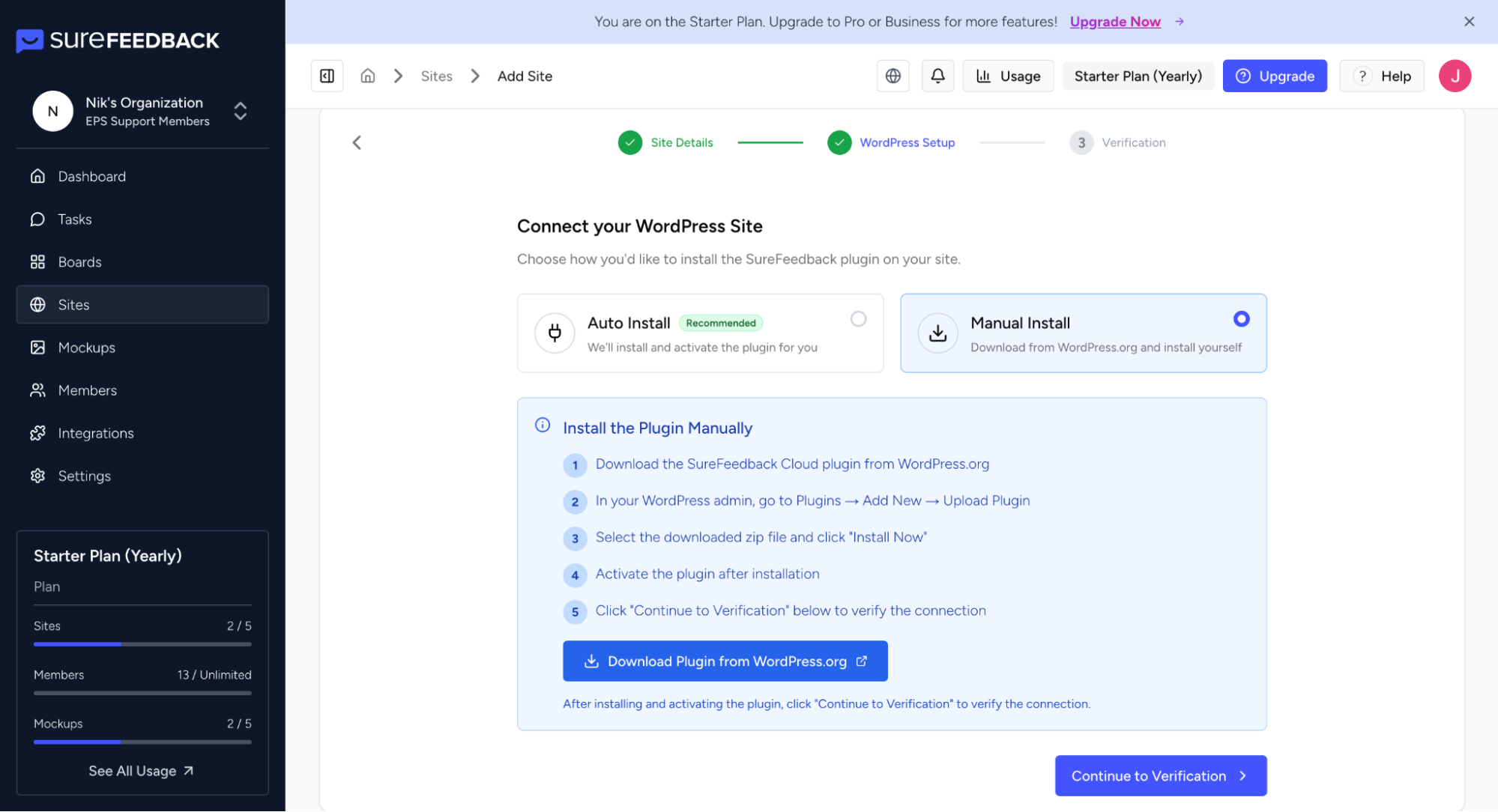
Step 2: Download the SureFeedback Plugin
After selecting manual connection:
- Click Download Plugin.
- A ZIP file containing the SureFeedback plugin will be downloaded to your computer.
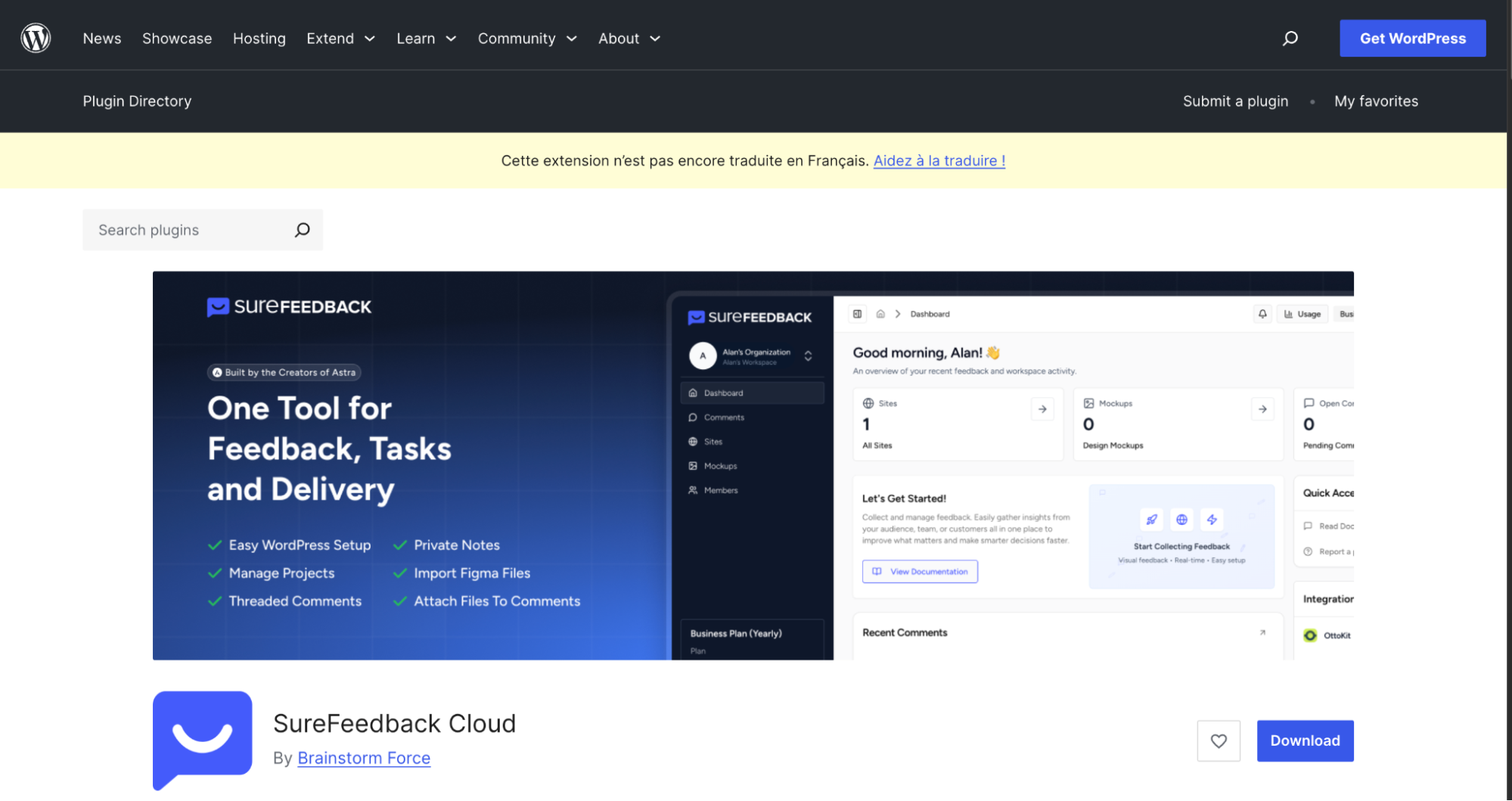
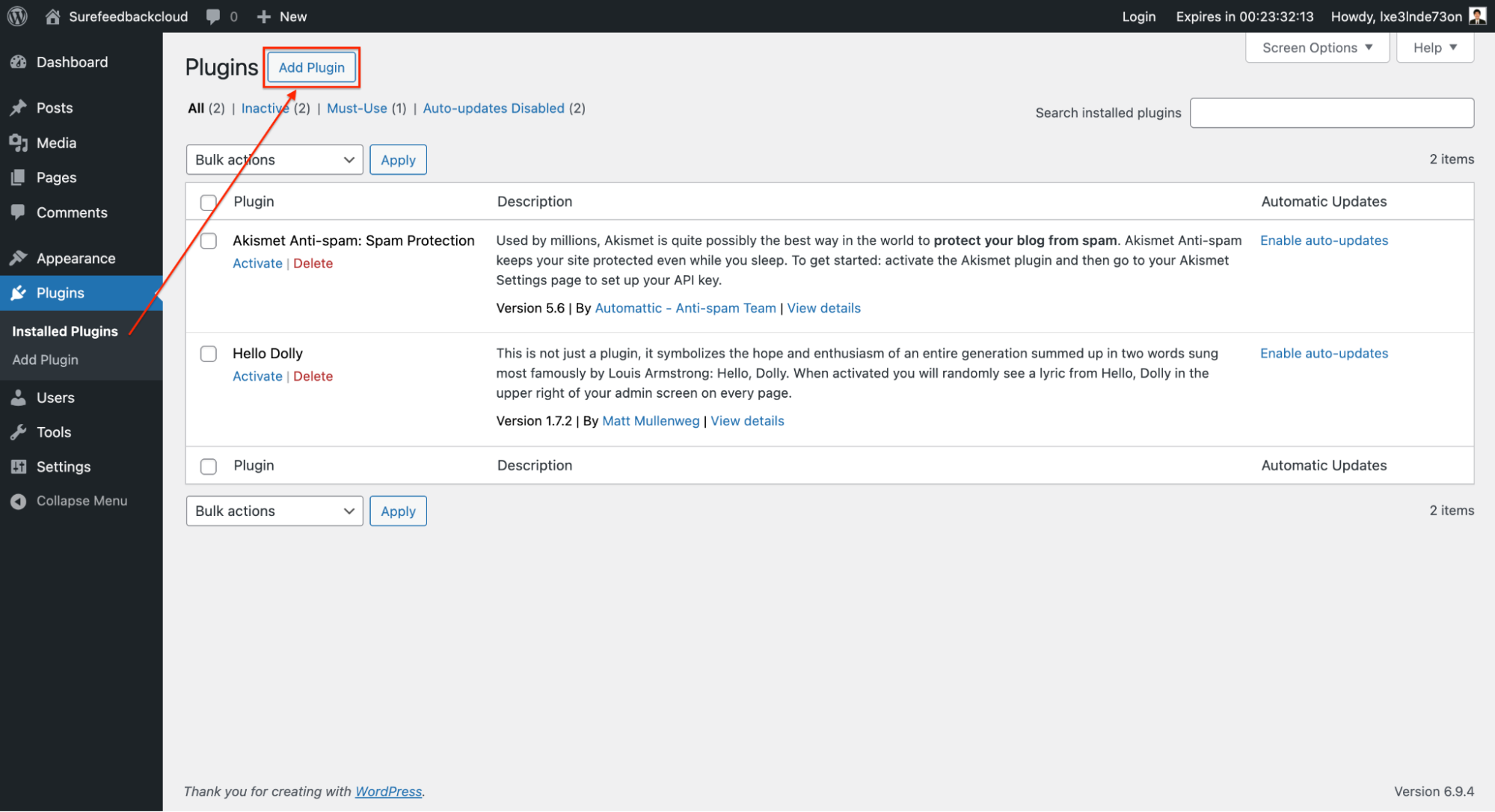
Step 3: Log in to Your WordPress Dashboard
- Open your WordPress admin panel.
- Navigate to Plugins → Add New.
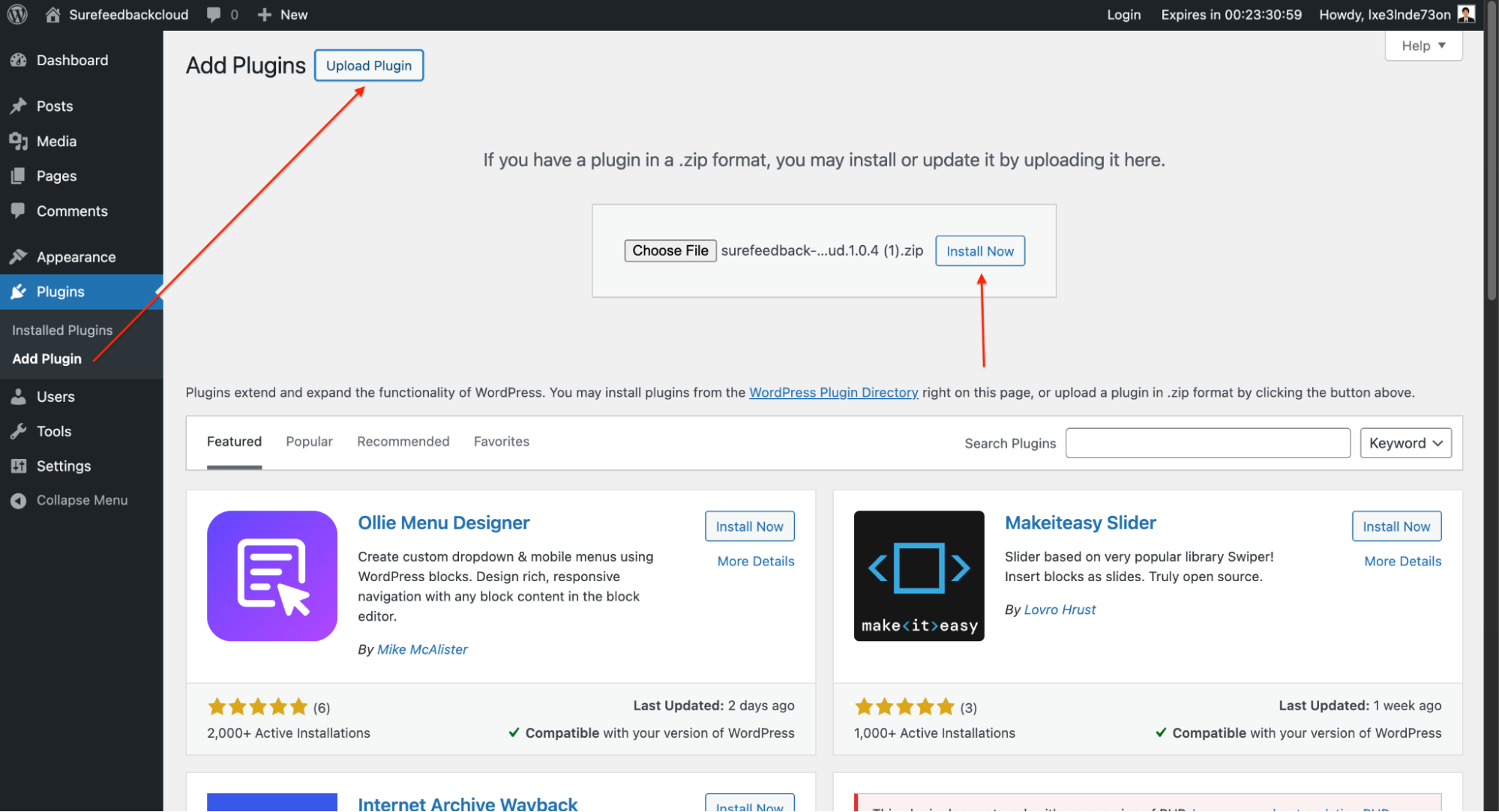
Step 4: Upload the Plugin
- Click Upload Plugin at the top of the page.
- Click Choose File.
- Select the SureFeedback plugin ZIP file you downloaded earlier.
- Click Install Now.
Step 5: Activate the Plugin
Once the plugin is installed:
- Click Activate Plugin.
- The SureFeedback plugin will now be active on your WordPress site.
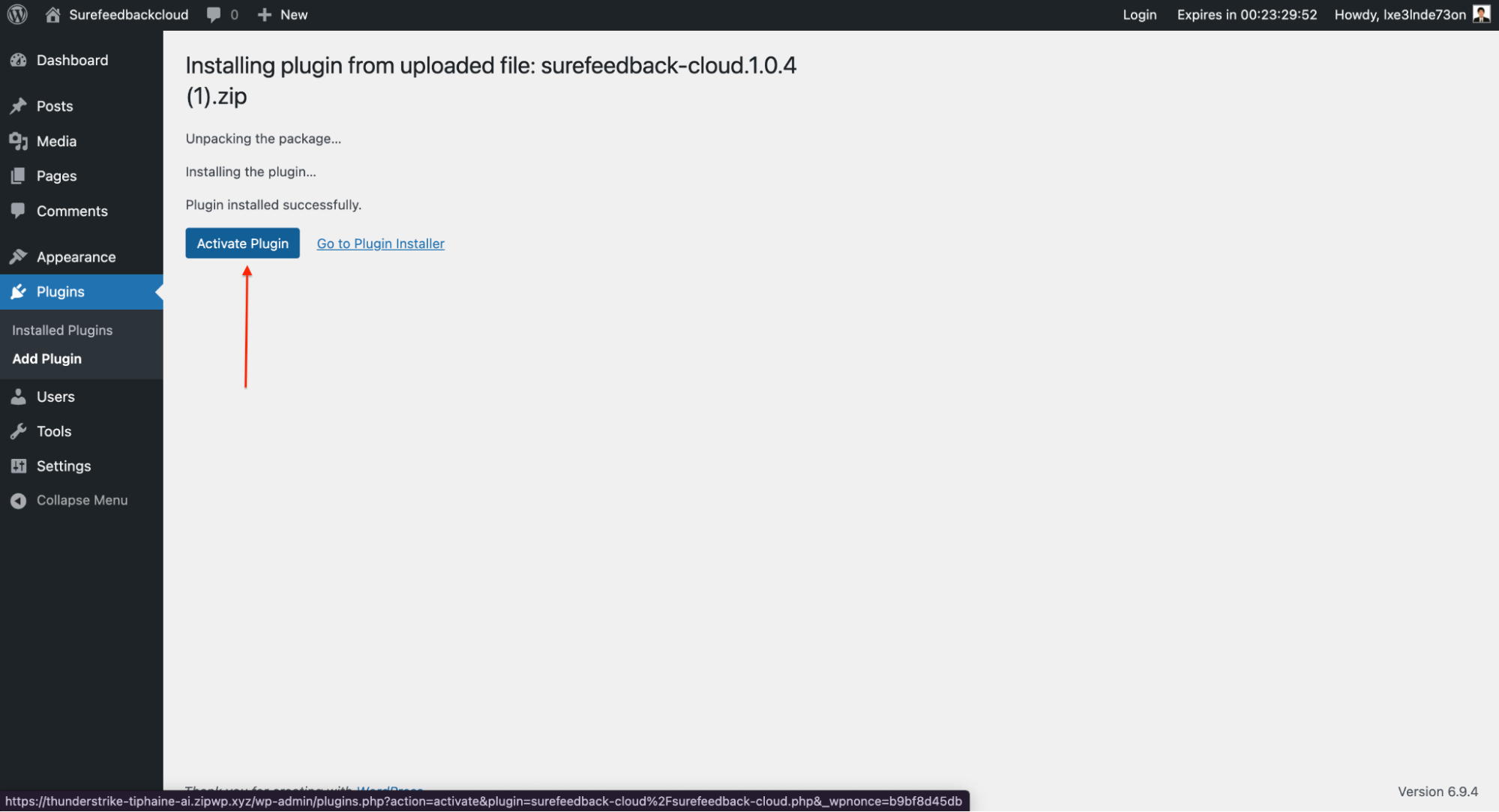
Step 6: Complete the Connection
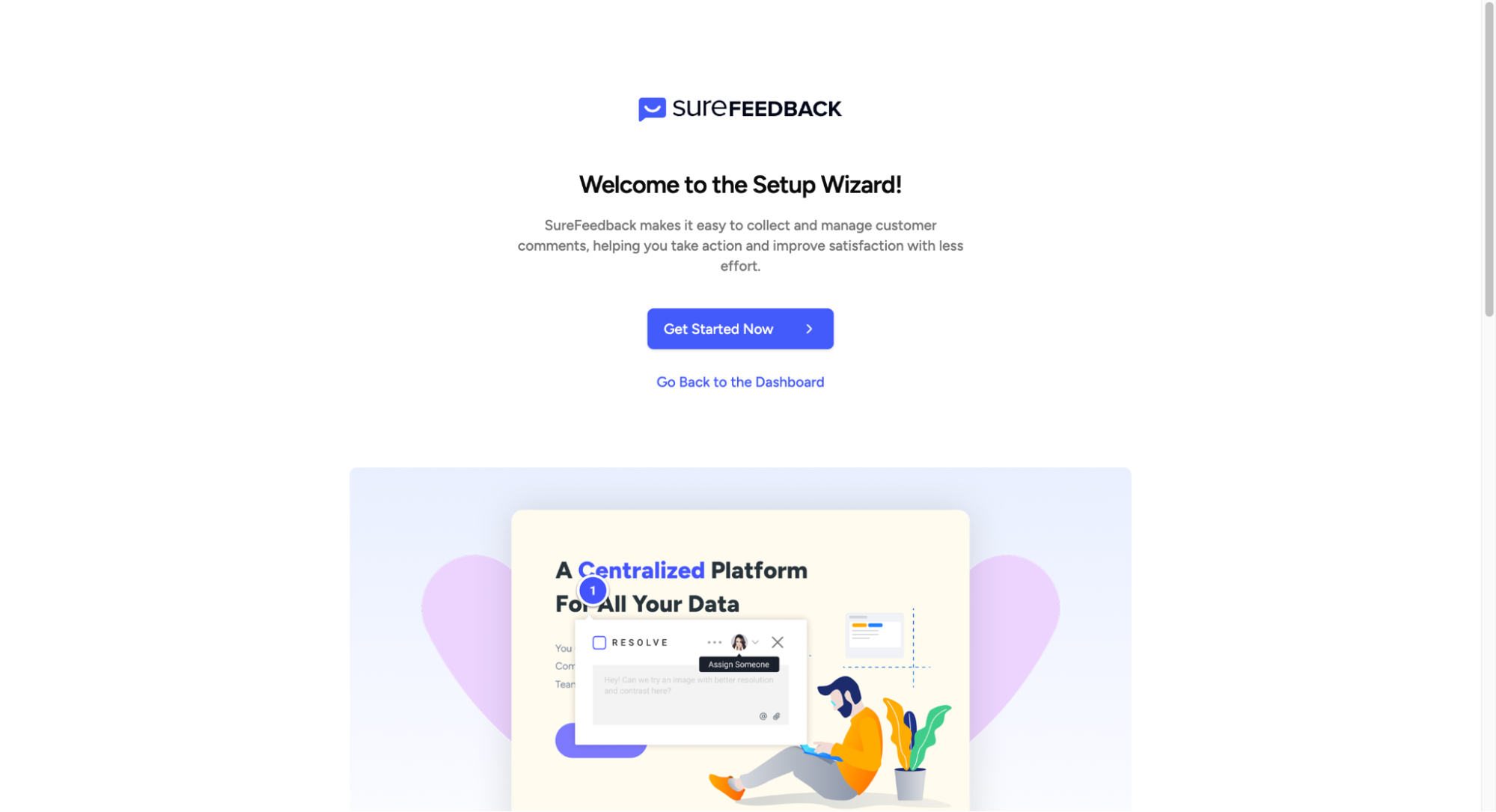
Return to the SureFeedback Cloud dashboard and confirm the connection.
Once verified:
- Your website will appear in the Sites Dashboard
- You can open the site using the Access Link
- You can start collecting visual feedback directly on your website
Troubleshooting
If the site does not connect after installing the plugin:
- Make sure the plugin is activated
- Clear any WordPress cache or security plugins
- Confirm the site URL matches the one added in SureFeedback
If the issue continues, contact SureFeedback Support for assistance.
Next Steps
After connecting your site, you can:
- Invite clients and team members to leave feedback
- Use the Access Link to open the visual feedback interface
- Manage comments and tasks directly from the SureFeedback dashboard
Was this doc helpful?
What went wrong?
We don't respond to the article feedback, we use it to improve our support content.
On this page