
SureFeedback MCP Guide
What is the SureFeedback MCP Server?
Model Context Protocol (MCP) is a standardized protocol that allows AI tools to securely connect with external applications and execute approved actions. The SureFeedback MCP Server acts as a bridge between your AI assistant (like Claude, Cursor, or Windsurf) and your SureFeedback Cloud account.
With the SureFeedback MCP Server, you can manage feedback comments, check site activity, handle mockup reviews, and oversee your team, all through natural language in your AI tool. No switching tabs. No copying and pasting data.
Example commands you can run:
- “Show me all open comments on my homepage”
- “Resolve the comment about the broken nav menu”
- “List mockups waiting for approval in the current workspace”
Prerequisites
You need an active SureFeedback Cloud account. No additional software installation is required. The MCP server is hosted by SureFeedback and connects over HTTP.
If you don’t have an account, sign up at app.surefeedback.com.
Step 1: Create an MCP Key
- Log in to your account at app.surefeedback.com
- From the sidebar, select Integrations
- From the top bar, select the AI/MCP tab
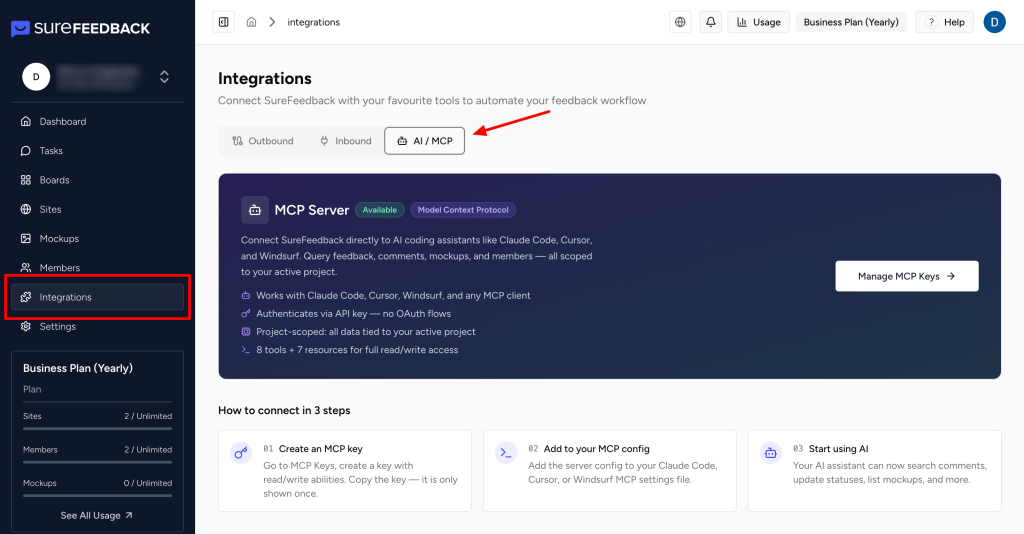
- Click the Manage MCP Keys button
- This will open your MCP Dashboard, where all the MCP keys you have created are listed
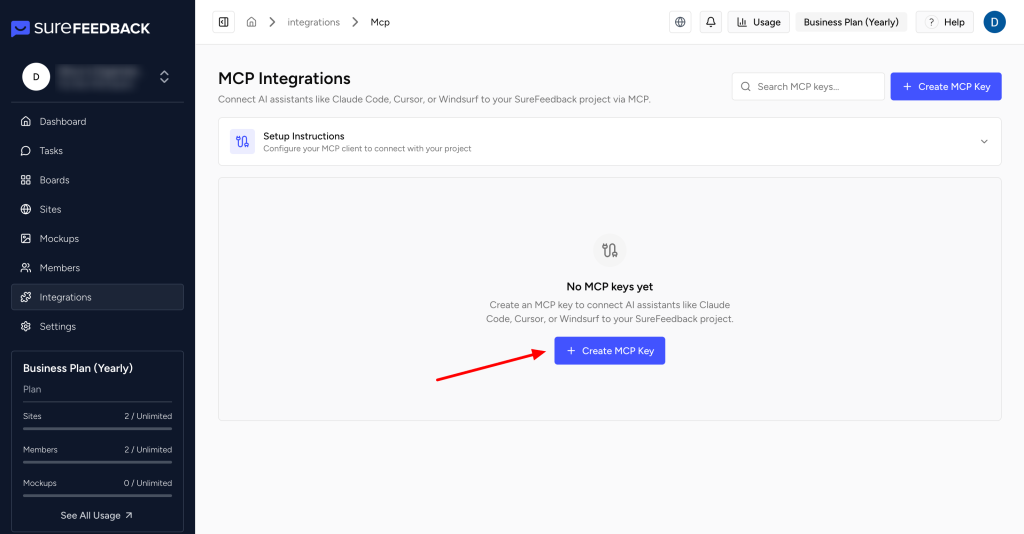
- Click + Create MCP Key
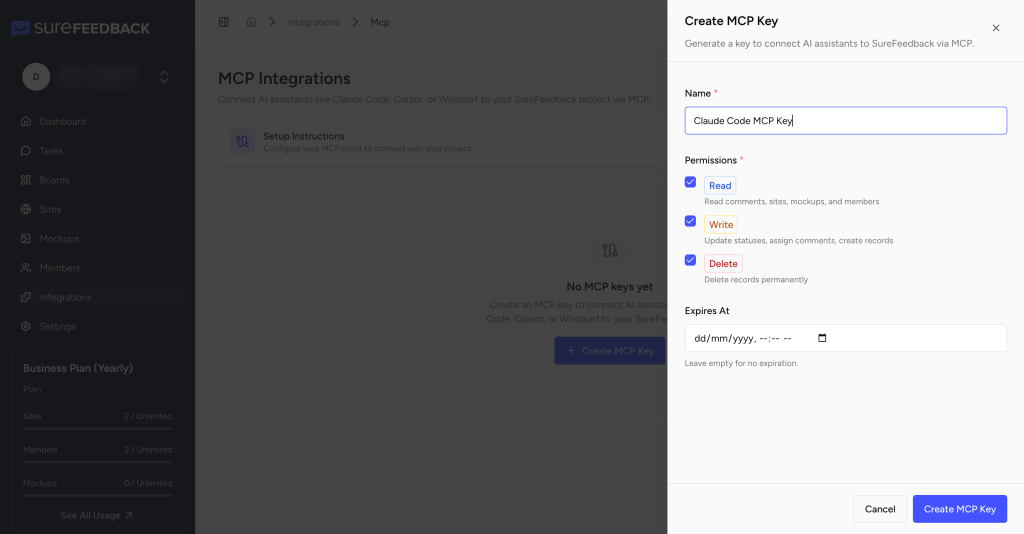
- Give the key a label (e.g., Claude MCP). You can also set:
- Permissions – choose from read, write, and delete access
- Expiry – set an expiration date, or leave it blank for unlimited access
- Copy the key immediately. It will be displayed only once
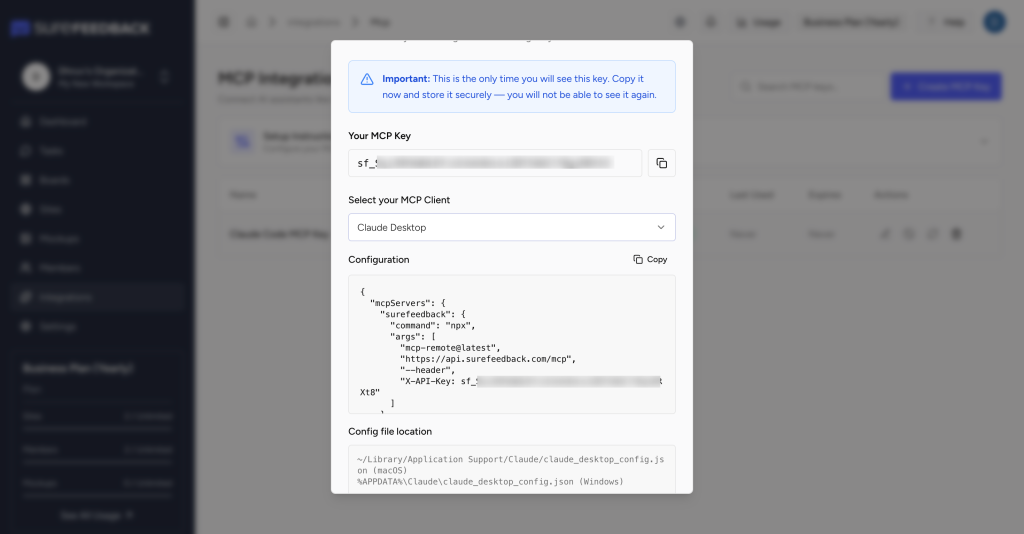
Step 2: Connect to Your AI Tool
After creating your key, select your AI tool from the dropdown in the MCP Dashboard. SureFeedback will show you the exact configuration to paste, specific to the tool you pick.
The sections below walk through the setup for each supported tool.
Claude Desktop
- Copy the configuration snippet shown in the SureFeedback MCP Dashboard after selecting Claude Desktop
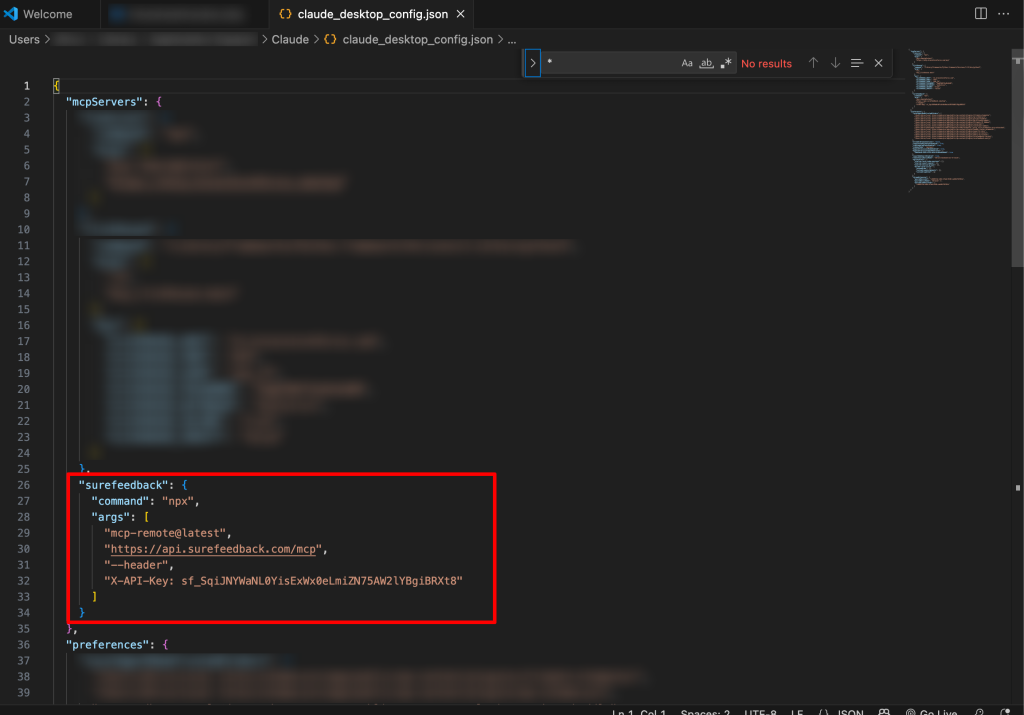
- Open your Claude Desktop config file:
| Platform | Path |
|---|---|
| macOS | ~/Library/Application Support/Claude/claude_desktop_config.json |
| Windows | %APPDATA%\Claude\claude_desktop_config.json |
- Paste the snippet into the mcpServers section. It will look like this:
{

  "mcpServers": {

    "surefeedback": {

      "type": "http",

      "url": "https://api.surefeedback.com/mcp",

      "headers": {

        "X-API-Key": "sf_your_key_here"

      }

    }

  }

}
- Save the file, then fully quit and reopen Claude Desktop (on Mac use Cmd+Q, not just closing the window)
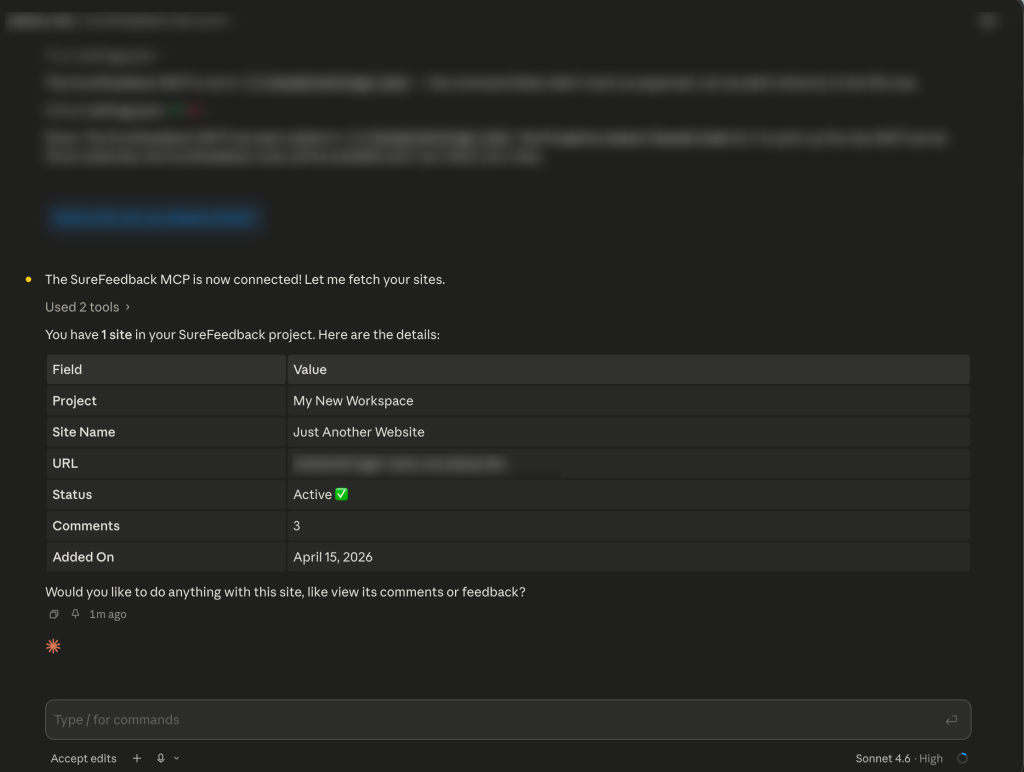
- In a new conversation, look for the tools icon in the input area. This confirms MCP tools are connected. You can also test it by typing:
“List my SureFeedback sites”
Claude CLI
- Copy the configuration snippet shown in the SureFeedback MCP Dashboard after selecting Claude CLI
- Open your terminal and run the command shown in the dashboard. It will follow this format:
claude mcp add –transport http surefeedback https://api.surefeedback.com/mcp \
–header “X-API-Key: sf_your_key_here”
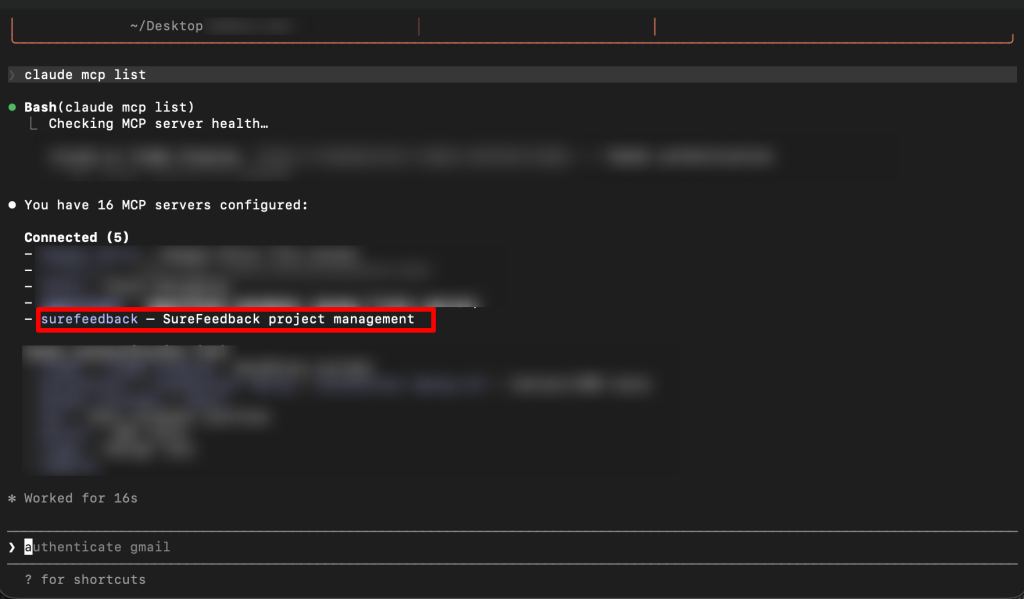
- Verify the connection by running:
claude mcp list
SureFeedback should appear in the list of connected MCP servers.
Cursor
- Copy the configuration snippet shown in the SureFeedback MCP Dashboard after selecting Cursor
- In Cursor, open the Command Palette with Cmd+Shift+P (Mac) or Ctrl+Shift+P (Windows) and search for Open MCP Settings
Alternatively, go to Cursor Settings > Features > MCP
- Paste the snippet into the MCP config. It will look like this:
{

  "mcpServers": {

    "surefeedback": {

      "type": "http",

      "url": "https://api.surefeedback.com/mcp",

      "headers": {

        "X-API-Key": "sf_your_key_here"

      }

    }

  }

}- Save the settings. Cursor will automatically connect to the server
- Open Cursor’s AI chat and test the connection:
“Use SureFeedback to show me my open comments”
Windsurf
- Copy the configuration snippet shown in the SureFeedback MCP Dashboard after selecting Windsurf
- In Windsurf, open Settings > MCP Servers (or open the MCP config file directly at ~/.windsurf/mcp.json)
- Paste the snippet into the config file:
{

  "mcpServers": {

    "surefeedback": {

      "type": "http",

      "url": "https://api.surefeedback.com/mcp",

      "headers": {

        "X-API-Key": "sf_your_key_here"

      }

    }

  }

}- Save and restart Windsurf
- Test the connection through the AI chat:
“Show me feedback on my sites using SureFeedback”
Cline (VS Code)
- Copy the configuration snippet shown in the SureFeedback MCP Dashboard after selecting Cline
- In VS Code, open the Cline extension sidebar and click the MCP Servers icon
- Click Add Server and paste the configuration snippet, or edit the Cline MCP config file directly at ~/.cline/mcp_settings.json:
{

  "mcpServers": {

    "surefeedback": {

      "type": "http",

      "url": "https://api.surefeedback.com/mcp",

      "headers": {

        "X-API-Key": "sf_your_key_here"

      }

    }

  }

}- Save and reload the extension
- In a Cline chat, test the connection:
“List my SureFeedback sites”
Other MCP Clients
If you are using a different MCP-compatible client, select Other in the SureFeedback MCP Dashboard. The configuration snippet will be a standard HTTP MCP format that works with any compatible client:
{

  "mcpServers": {

    "surefeedback": {

      "type": "http",

      "url": "https://api.surefeedback.com/mcp",

      "headers": {

        "X-API-Key": "sf_your_key_here"

      }

    }

  }

}
Refer to your AI tool’s documentation for where to place this configuration.
Available Capabilities
Once connected, your AI assistant can perform these actions in SureFeedback:
Feedback Comments
- List comments for a site or page (filter by status, priority, assignee)
- View full comment details including replies and screenshots
- Create, update, resolve, or delete comments
- Assign comments to team members
- Add replies to comment threads
Sites and Pages
- List all sites in your organization
- View site details and analytics
- Check which pages have open feedback
- Export site comments
Mockups
- List mockups in the current workspace
- View mockup comments and approval status
- Approve or reject mockups
- Add comments to mockups
Workspaces and Team
- List workspaces and switch between them
- View team members and their assignments
- Check organization dashboard stats
- View comment activity feed
Example Prompts
Reviewing feedback:
- “Show me all high-priority open comments on example.com”
- “What feedback came in today across all my sites?”
- “Which page has the most unresolved comments?”
Taking action:
- “Resolve all comments on the pricing page that were marked as fixed”
- “Assign the bug report comments on the checkout page to [email protected]“
- “Reply to comment #123 saying this will be fixed in the next release”
Mockup reviews:
- “List all mockups pending approval in my workspace”
- “Approve the homepage redesign mockup”
- “Show me the feedback on the mobile nav mockup”
Reporting:
- “Give me a summary of this week’s feedback activity”
- “How many comments does each team member have open?”
Troubleshooting
Tools not showing in your AI tool
- Make sure you copied and pasted the full configuration snippet from the SureFeedback MCP Dashboard
- Confirm you fully restarted the AI tool after making changes
- Check that the config file is valid JSON (no trailing commas, all brackets matched)
“Unauthorized” or authentication errors
- Double-check that your API key is correct and begins with sf_
- The key may have expired or been revoked. Go to Integrations > AI/MCP > Manage MCP Keys to check
- Create a new key and update your configuration if needed
Empty results (no sites, no comments)
- Confirm you are in the right organization. You can ask: “List my organizations”
- Make sure you have at least one site set up in your SureFeedback dashboard
Security
Your MCP key grants access based on the permissions you set when creating it. You can scope each key to read-only, or include write and delete access depending on what your AI tool needs.
- Revoke any key at any time from Integrations > AI/MCP > Manage MCP Keys
- Each key shows a Last used timestamp so you can audit activity
- Set an expiry date on keys you want to automatically deactivate
- Create separate keys for different tools (e.g., one for Claude, one for Cursor)
Need Help?
- Support: [email protected]
We don't respond to the article feedback, we use it to improve our support content.