
Understanding Workspaces (and How to Create One)
What is a Workspace?
In SureFeedback Cloud, a Workspace is where your projects and collaboration happen.
Workspaces help you organize websites, mockups, tasks, and team members into logical groups so feedback stays structured and easy to manage.
Most teams create one workspace per client, project, or department.
For example:
| Organization | Workspace | Content |
| Design Agency | Client A | Website + Mockups |
| Design Agency | Client B | Website |
| Product Team | Marketing | Landing Pages + Mockups |
Each workspace can contain:
- Websites (Sites) where feedback can be collected directly on live pages
- Mockups for reviewing designs before development
- Tasks created from feedback
- Members who collaborate on reviews
- Activity history related to the project
This structure keeps projects separated and prevents feedback from different clients or teams from mixing together.
How Workspaces Help Organize Feedback
Workspaces allow you to keep all feedback related to a project in one place.
For example, a workspace might include:
- A live website for development feedback
- Design mockups for UI review
- Tasks assigned to developers or designers
- Team members and clients collaborating on approvals
All tasks created within those assets stay inside that workspace.
Default Workspace
When you create your SureFeedback Cloud account, the platform automatically creates:
- One Organization
- One Default Workspace
This allows you to immediately start adding:
- Websites
- Mockups
- Tasks
You can continue using the default workspace or create additional ones as your projects grow.
When Should You Create a New Workspace?
You may want to create additional workspaces when:
- Managing multiple client projects
- Organizing work by teams or departments
- Separating design mockups from live projects
- Keeping feedback for different projects independent
Example structure for an agency:
Workspace → Client A
Workspace → Client B
Workspace → Internal Projects
Each workspace will contain its own sites, mockups, and tasks.
How to Create a Workspace
Follow the steps below to create a new workspace.
Step 1: Go to the Workspaces Section
From your SureFeedback dashboard:
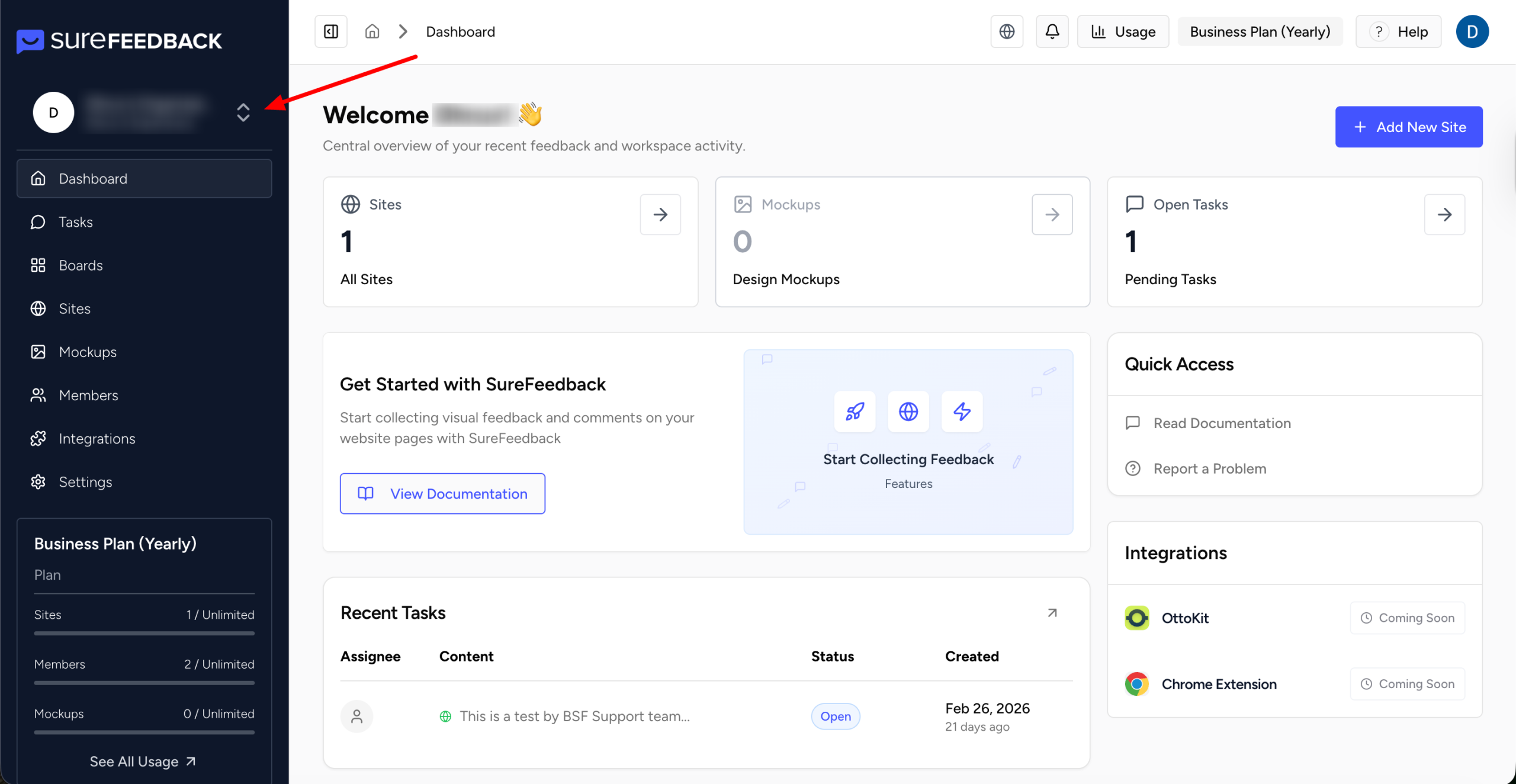
- Navigate to Workspaces, this can be found by clicking on the Organization in your Dashboard
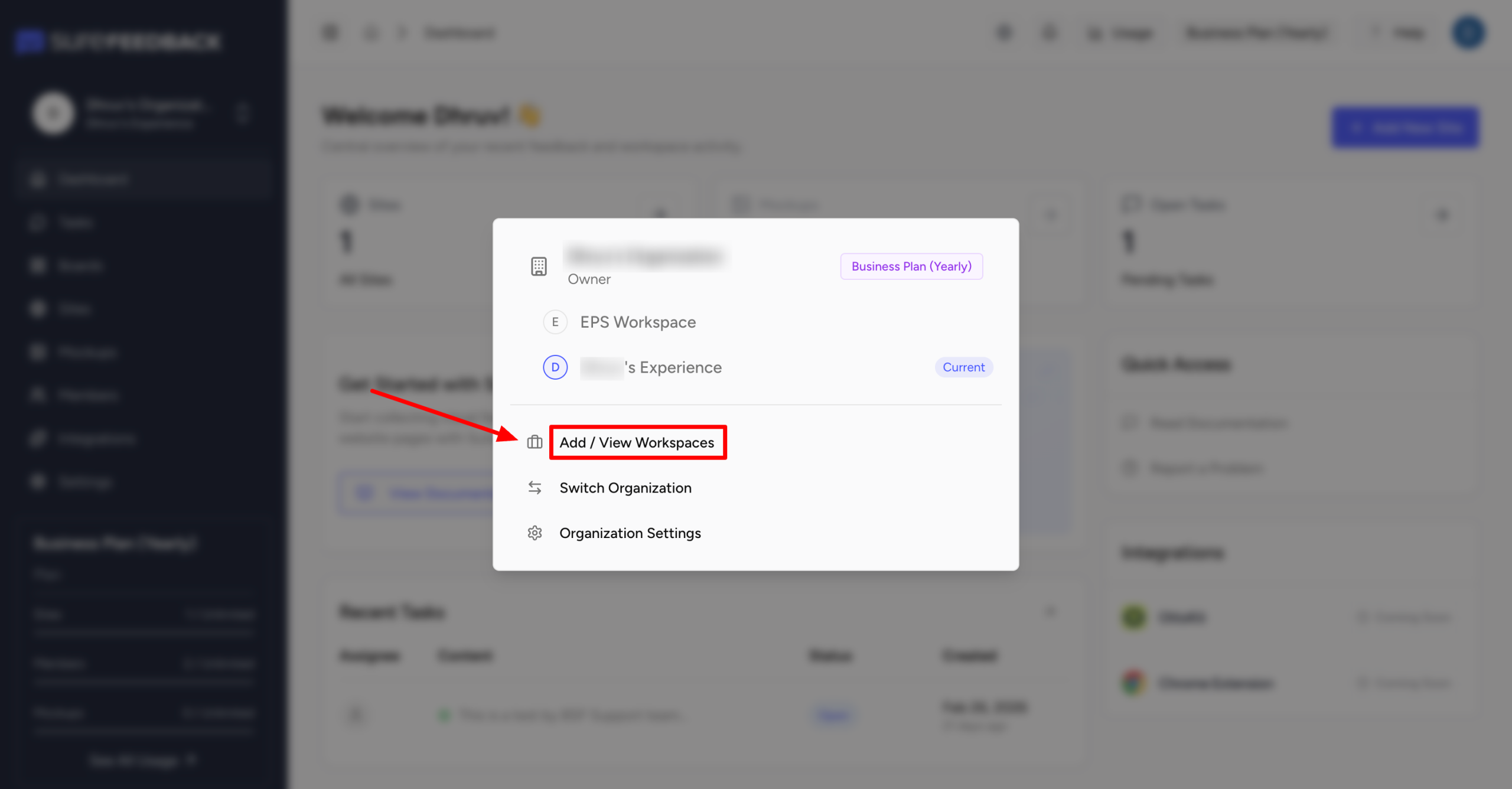
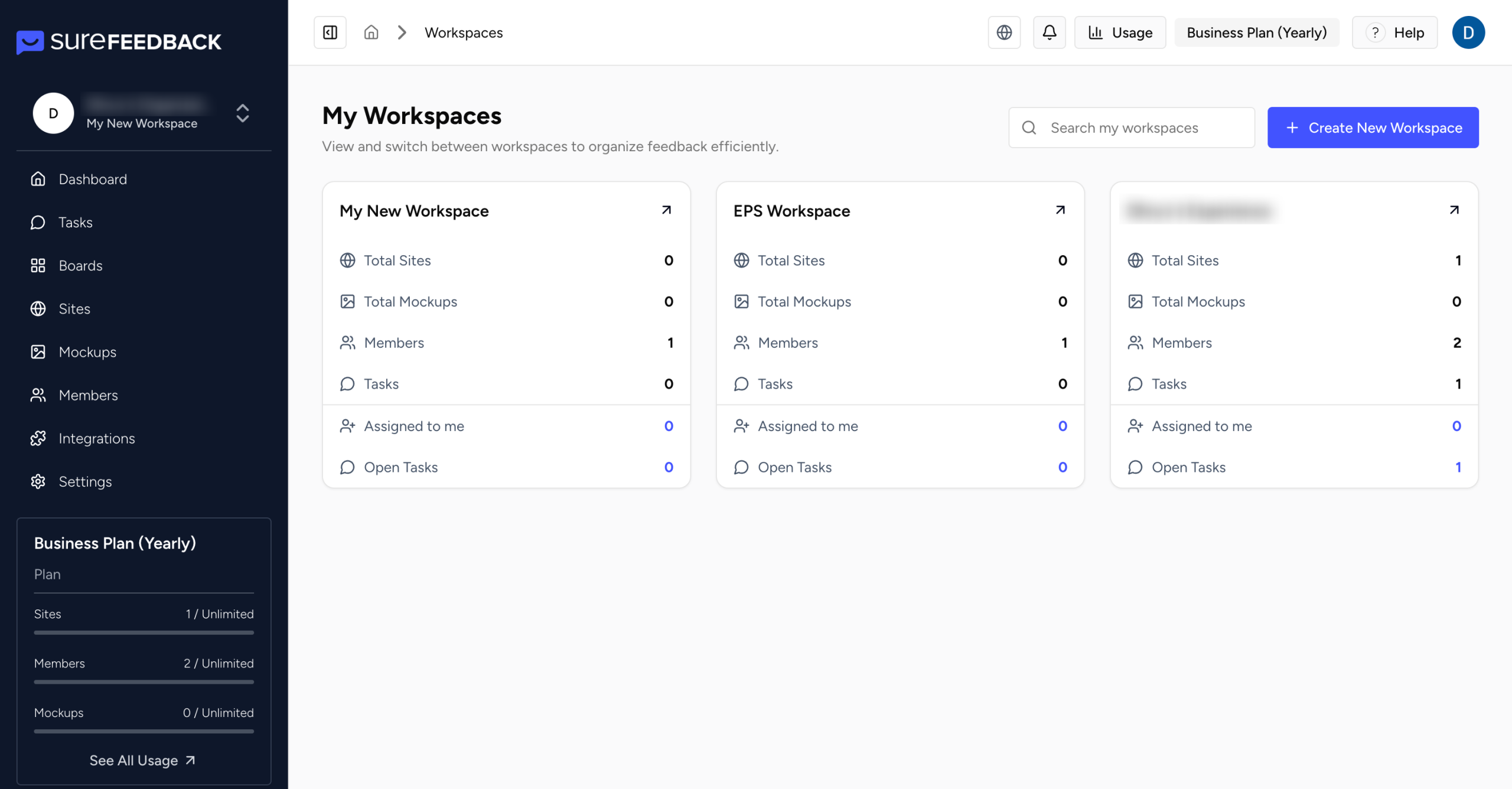
- Here you will see the Workspaces that are assigned to you. To manage Workspaces click on Add/View Workspace
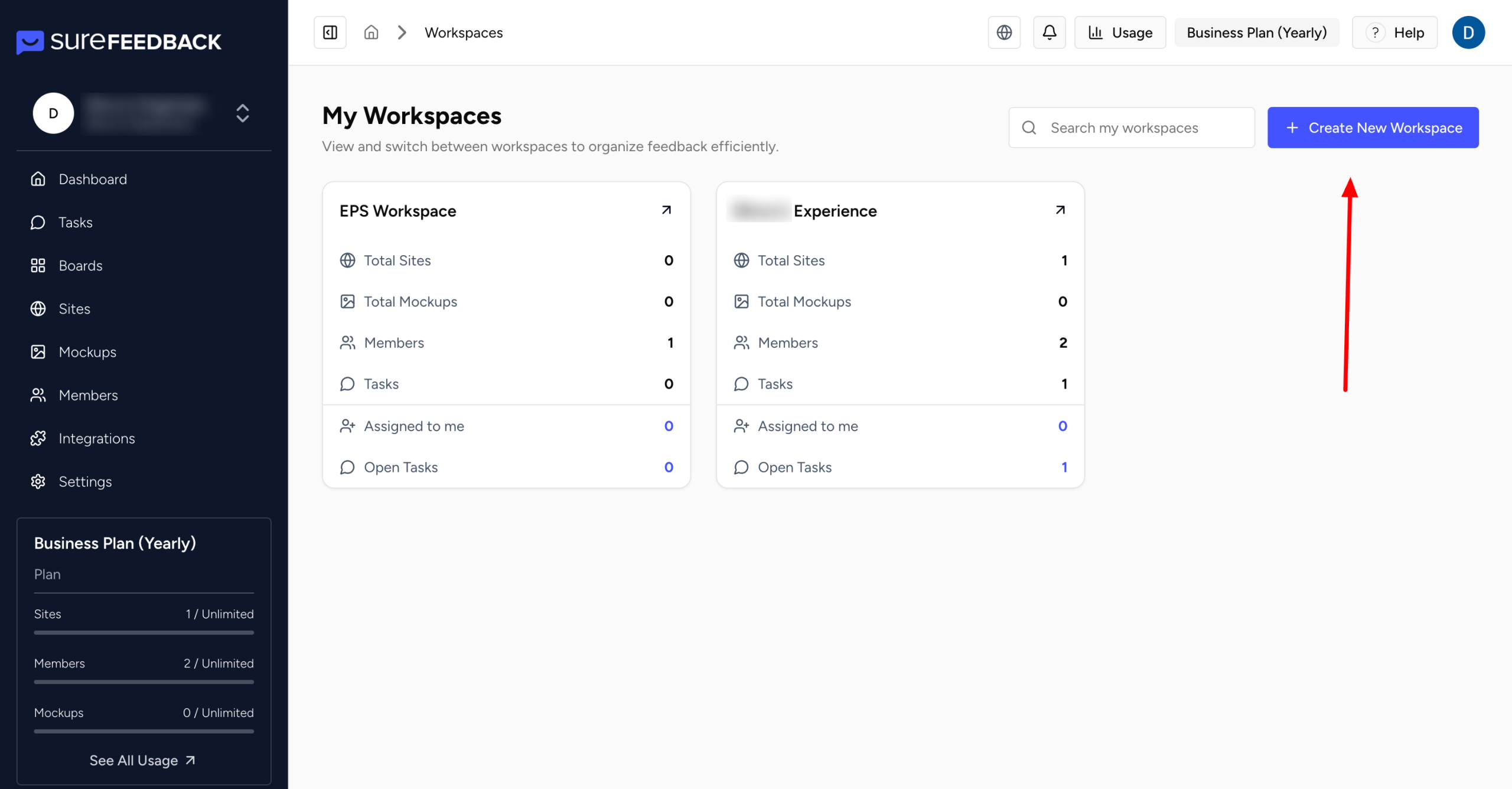
- You will be moved to the Workspace Dashboard.
- Click on the “+ Create New Workspace” Button
Step 2: Enter Workspace Details
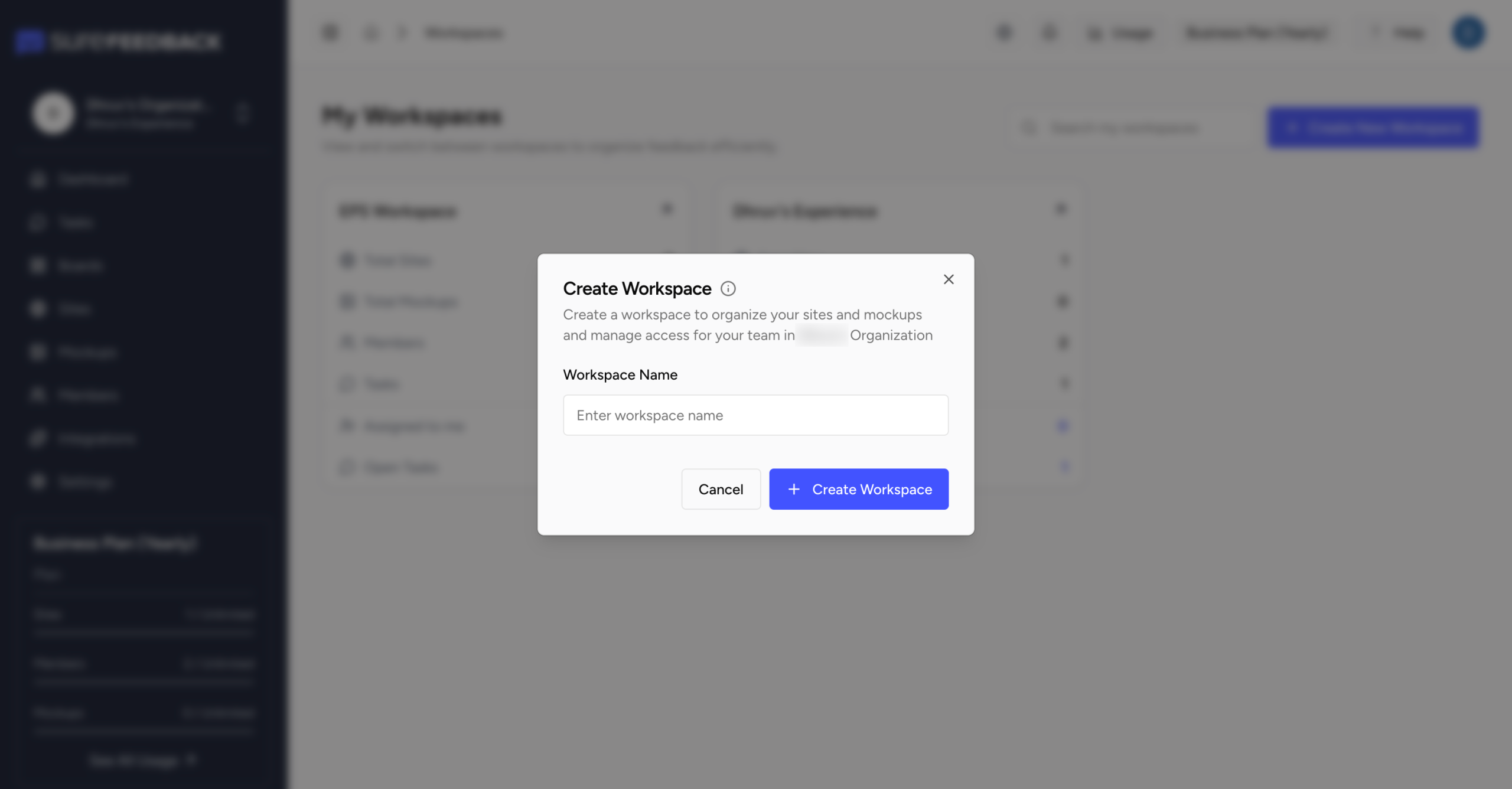
You will be asked to provide a name for the workspace.
Choose a name that clearly represents the project, such as:
- Client Website
- Marketing Campaign
- Product Redesign
- Landing Page Review
Step 3: Create the Workspace
Click Create Workspace to finish the setup.
Your new workspace will now appear in the Workspaces list and is ready to use.
What You Can Do Inside a Workspace
Once a workspace is created, you can:
- Add Websites for live feedback
- Upload Mockups for design review
- Create and manage Tasks
- Invite team members or clients
- Share Access Links for reviews
- Track progress with the Kanban Board
Everything related to that project stays organized inside the workspace.
Best Practices for Using Workspaces
To keep your account organized:
- Use one workspace per client or project
- Add both sites and mockups related to that project inside the same workspace
- Only invite members who need access to that workspace
- Keep internal and client projects separated
This makes collaboration cleaner and helps teams manage feedback more efficiently.
We don't respond to the article feedback, we use it to improve our support content.