
How to Use Private Comments
Private comments in SureFeedback Cloud allow you to communicate internally with your team without the client seeing the message. This is useful for discussing tasks, clarifying details, or leaving internal notes.
When to Use Private Comments
Use private comments when you want to:
- Discuss tasks internally with your team
- Leave notes that clients should not see
- Clarify feedback before responding to clients
- Coordinate work behind the scenes
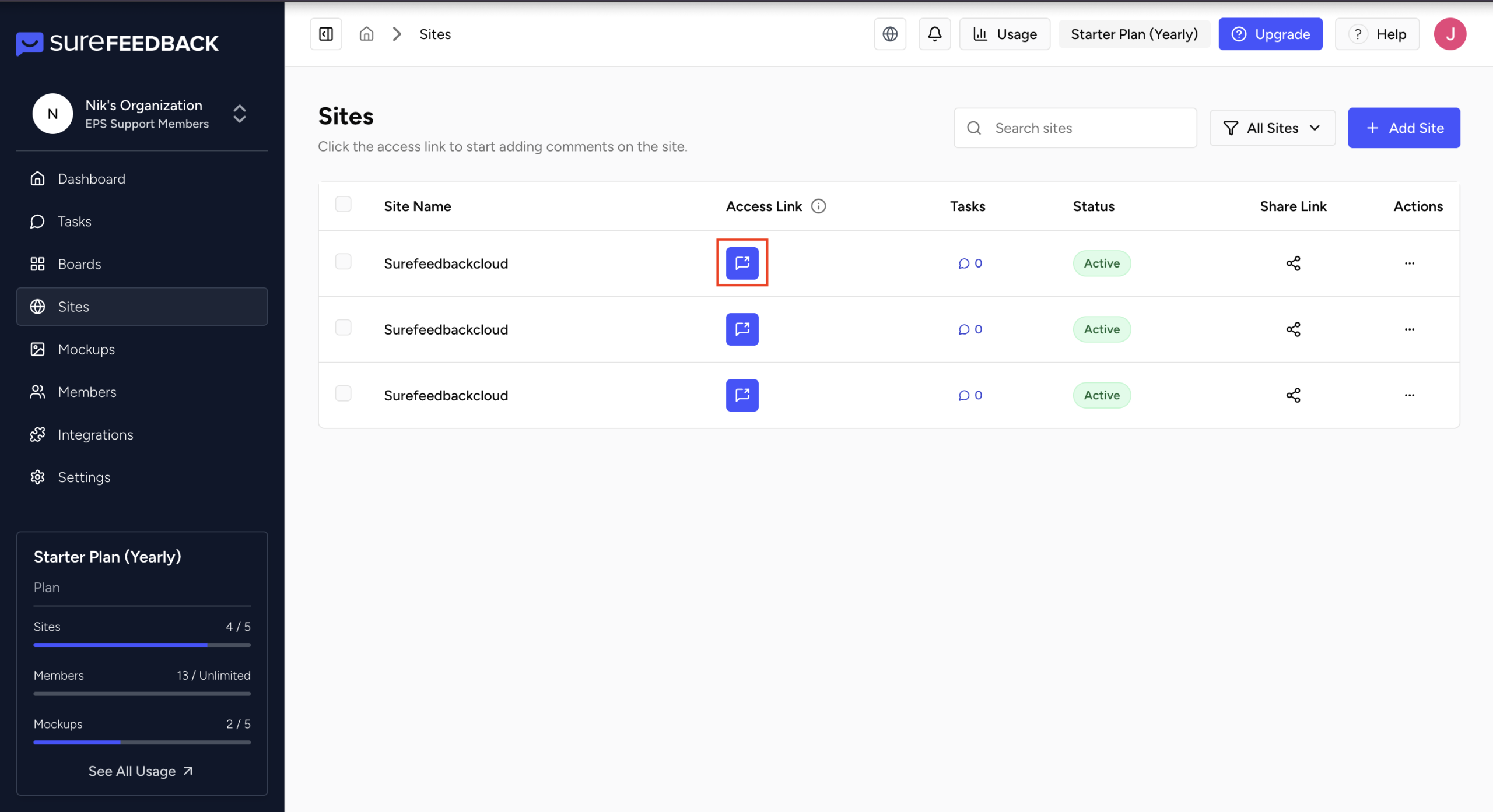
Step 1: Open Your Site Using the Access Link
- Log in to your SureFeedback Cloud dashboard.
- Navigate to the Sites section.
- Locate your connected website.
- Click the Access Link to open your site with the feedback tool enabled.
Step 2: Open or Create a Comment
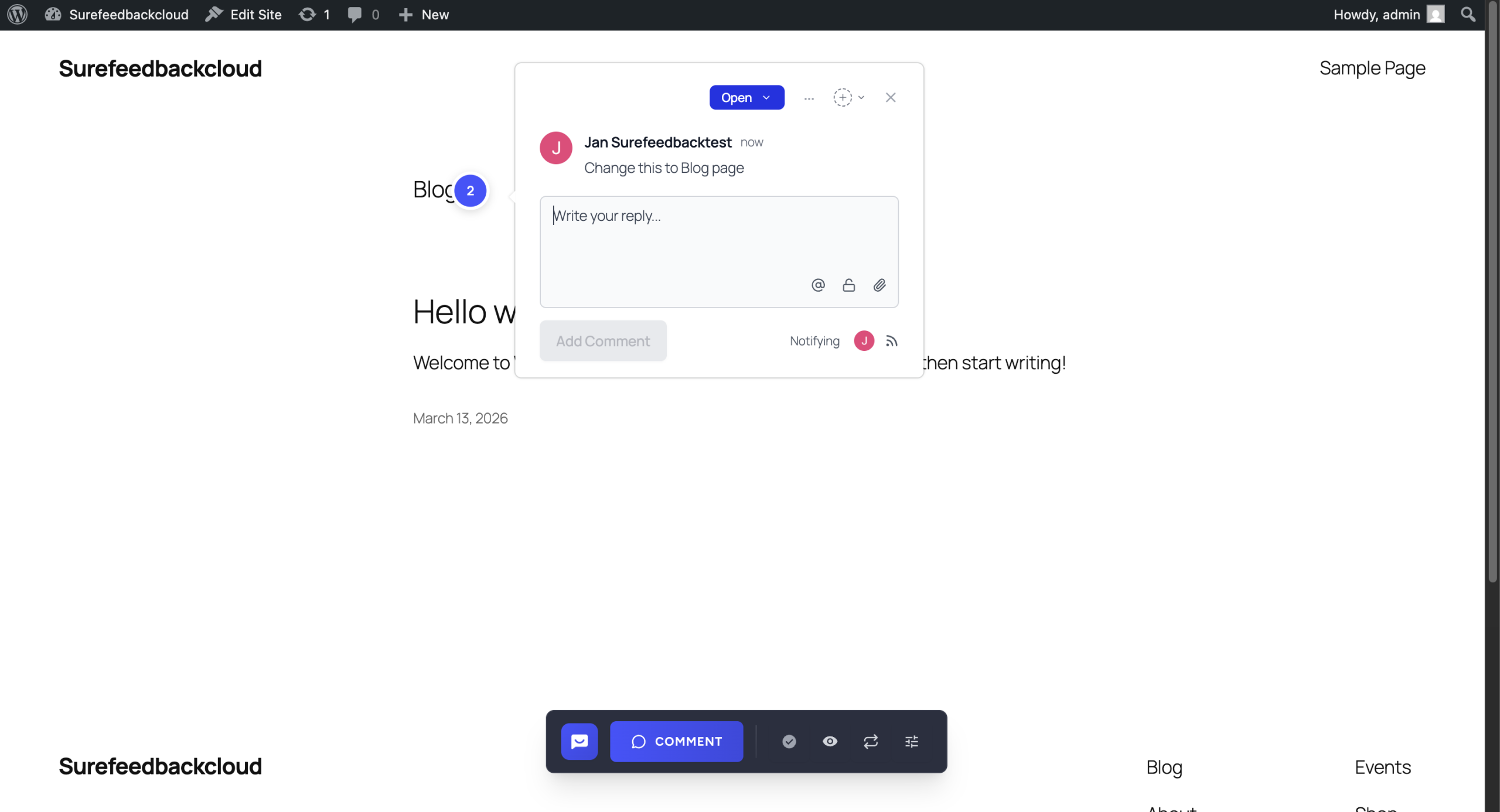
- Click on an existing comment marker
or - Click anywhere on the page to create a new comment
The comment panel will appear.
Step 3: Switch to Private Comment
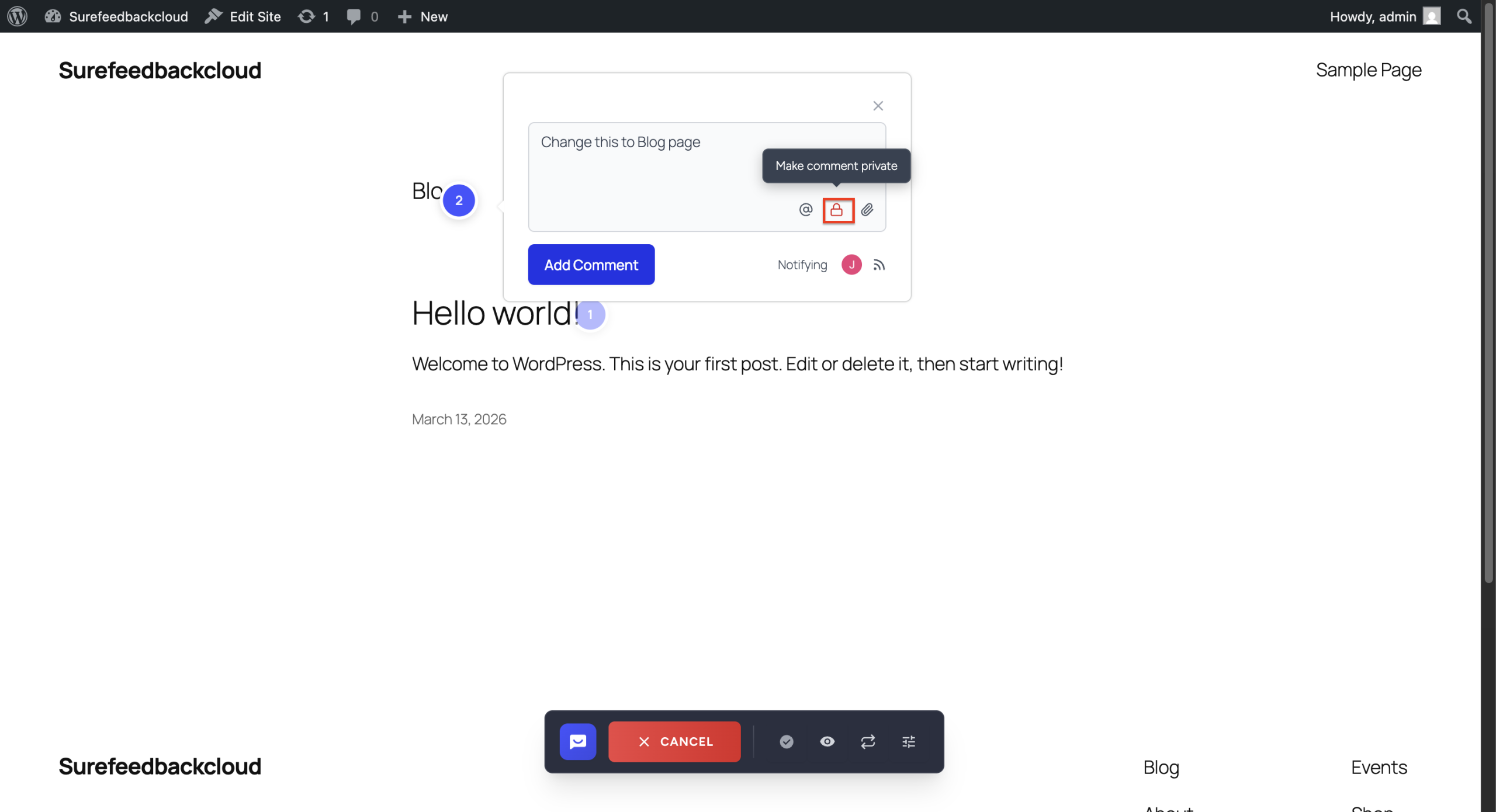
- In the comment box, locate the Private or Internal Comment option.
- Enable or toggle this option before submitting your comment.
- Enter your message.
- Click Submit.
The comment will now be marked as private.
Step 4: Identify Private Comments
Private comments are typically indicated by:
- A distinct red icon in the comment thread
Only team members will be able to view these comments.

Important Notes
- Private comments are not visible to clients or external users
- Only users with access to the workspace can view private comments
- You can use private comments alongside regular comments in the same thread
Troubleshooting
If you are unable to use private comments:
- Ensure you are logged in with the correct permissions
- Confirm that you are part of the workspace or team
- Refresh the page or reload the Access Link
Next Steps
After using private comments, you can:
- Assign comments to team members
- Reply publicly when ready to communicate with clients
- Mark comments as resolved once the task is completed
Was this doc helpful?
What went wrong?
We don't respond to the article feedback, we use it to improve our support content.