
How to Add Comments on Your Site After Successful Connection
Once your website is successfully connected to SureFeedback Cloud, you can start leaving comments directly on your site. This allows you and your clients to provide precise, visual feedback on specific elements of a page.
Before You Begin
Make sure that:
- Your site is successfully connected to SureFeedback
- You are accessing the site using the Access Link or are logged in with the correct permissions
Step 1: Open Your Site Using the Access Link
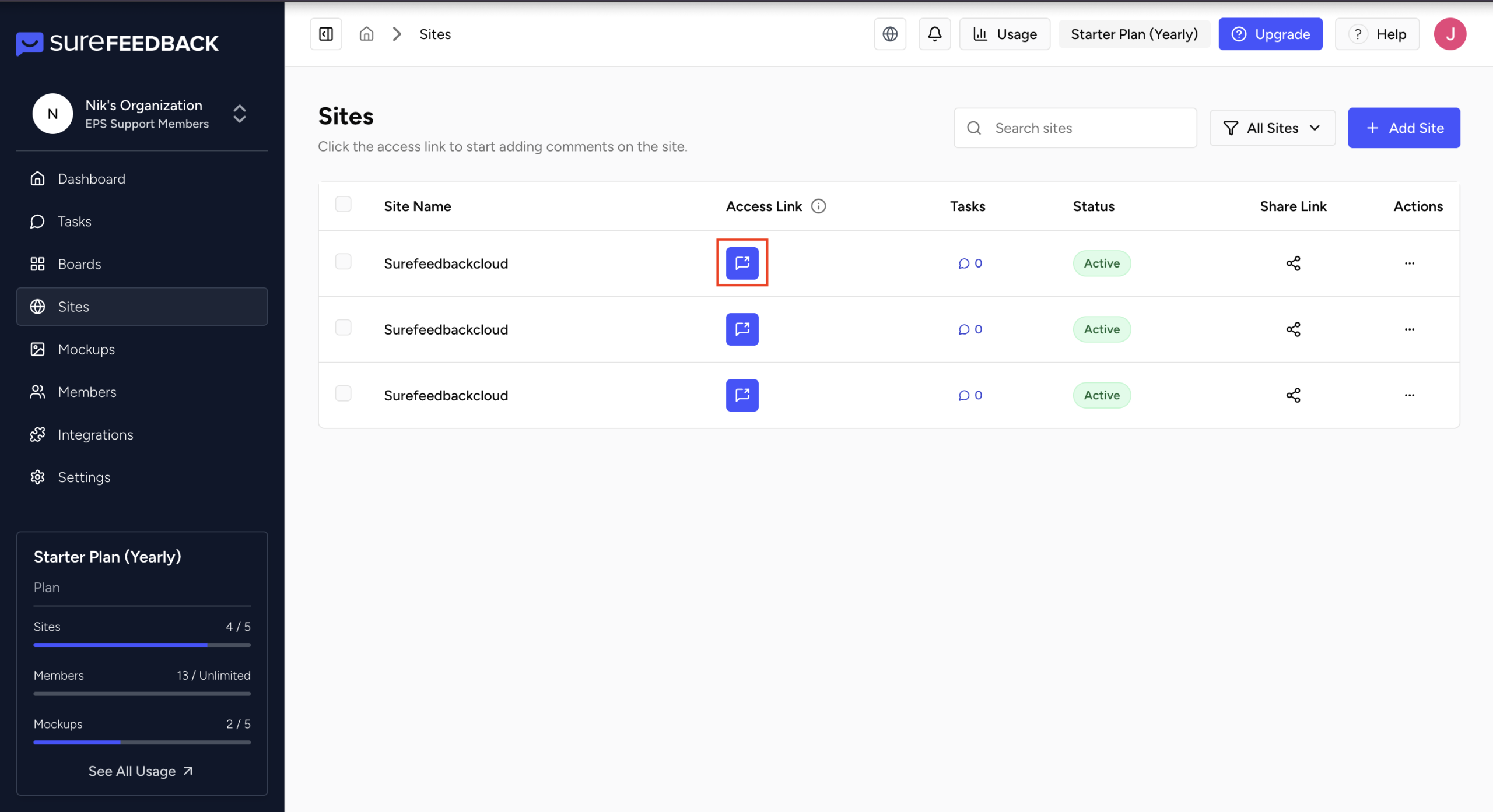
- Log in to your SureFeedback Cloud dashboard.
- Navigate to the Sites section.
- Locate your connected website.
- Click the Access Link to open your site with the feedback tool enabled.
Step 2: Enable Comment Mode
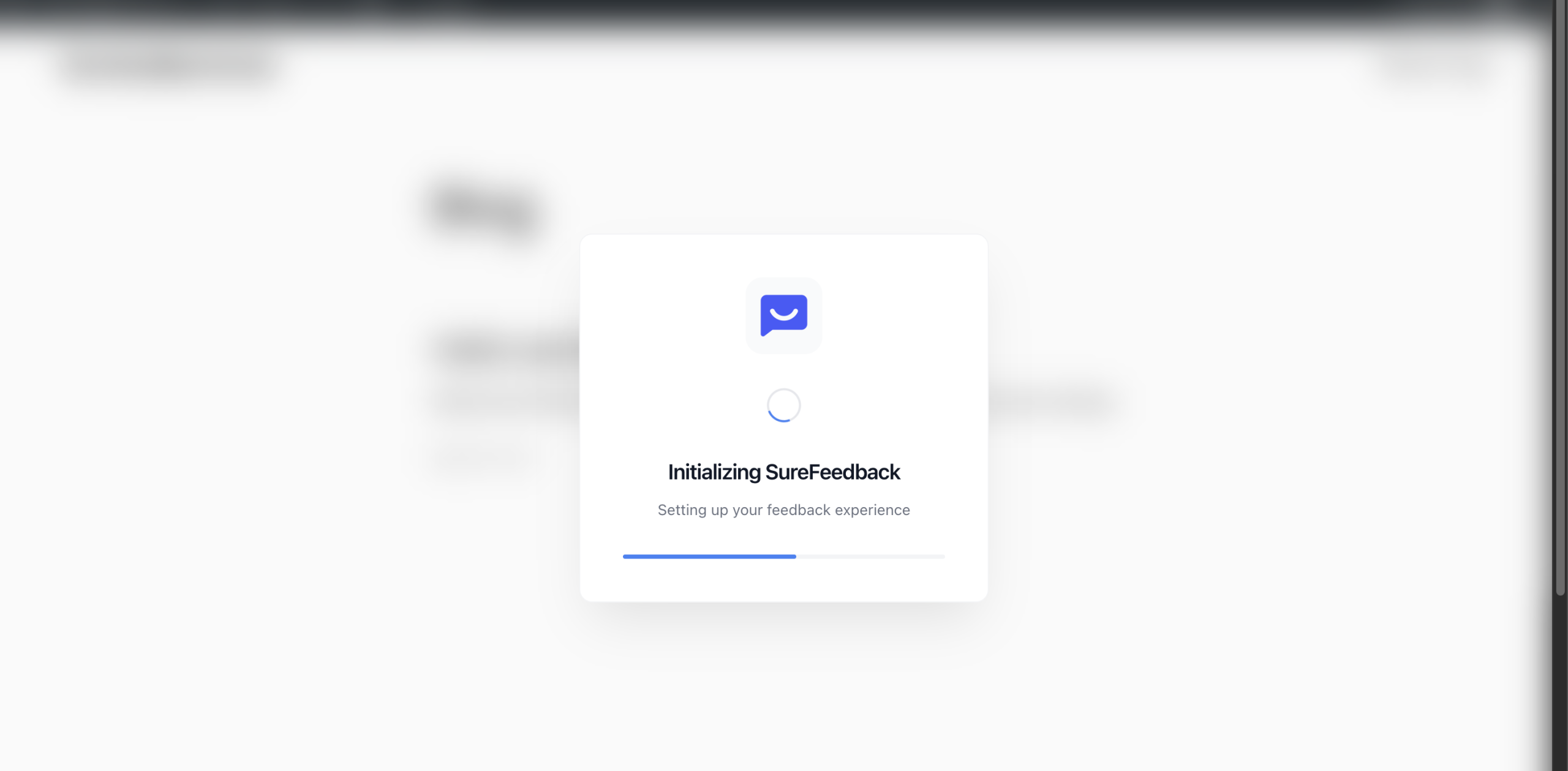
Once your site loads:
- The SureFeedback interface will appear on the screen
- Click anywhere on the page to start adding a comment
Step 3: Add a Comment
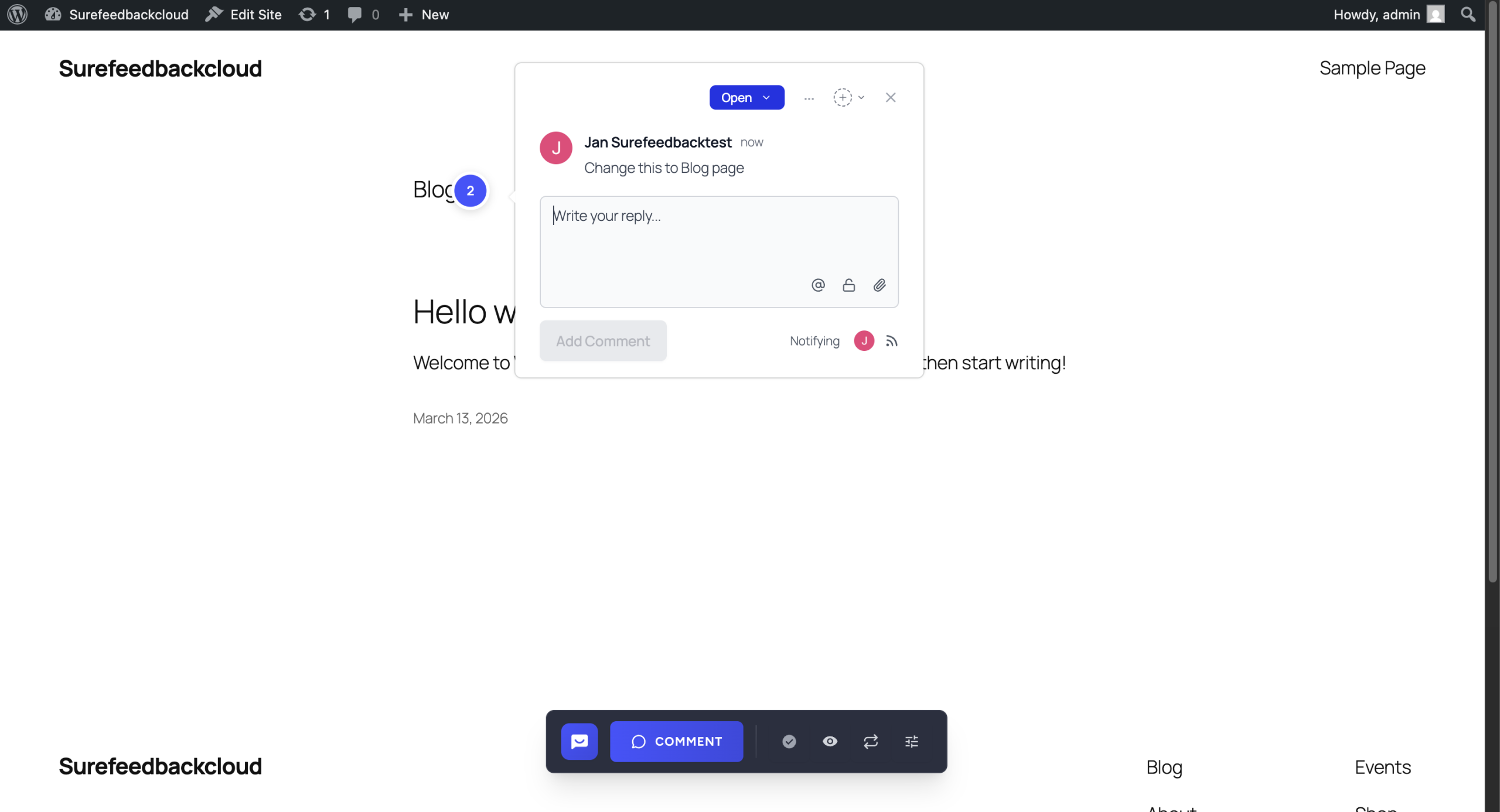
- Click on the specific area of the page where you want to leave feedback.
- A comment box will appear.
- Enter your message or feedback.
- Click Submit or Post Comment.
Your comment will now be pinned to that exact location on the page.
Step 4: View and Manage Comments
After adding a comment:
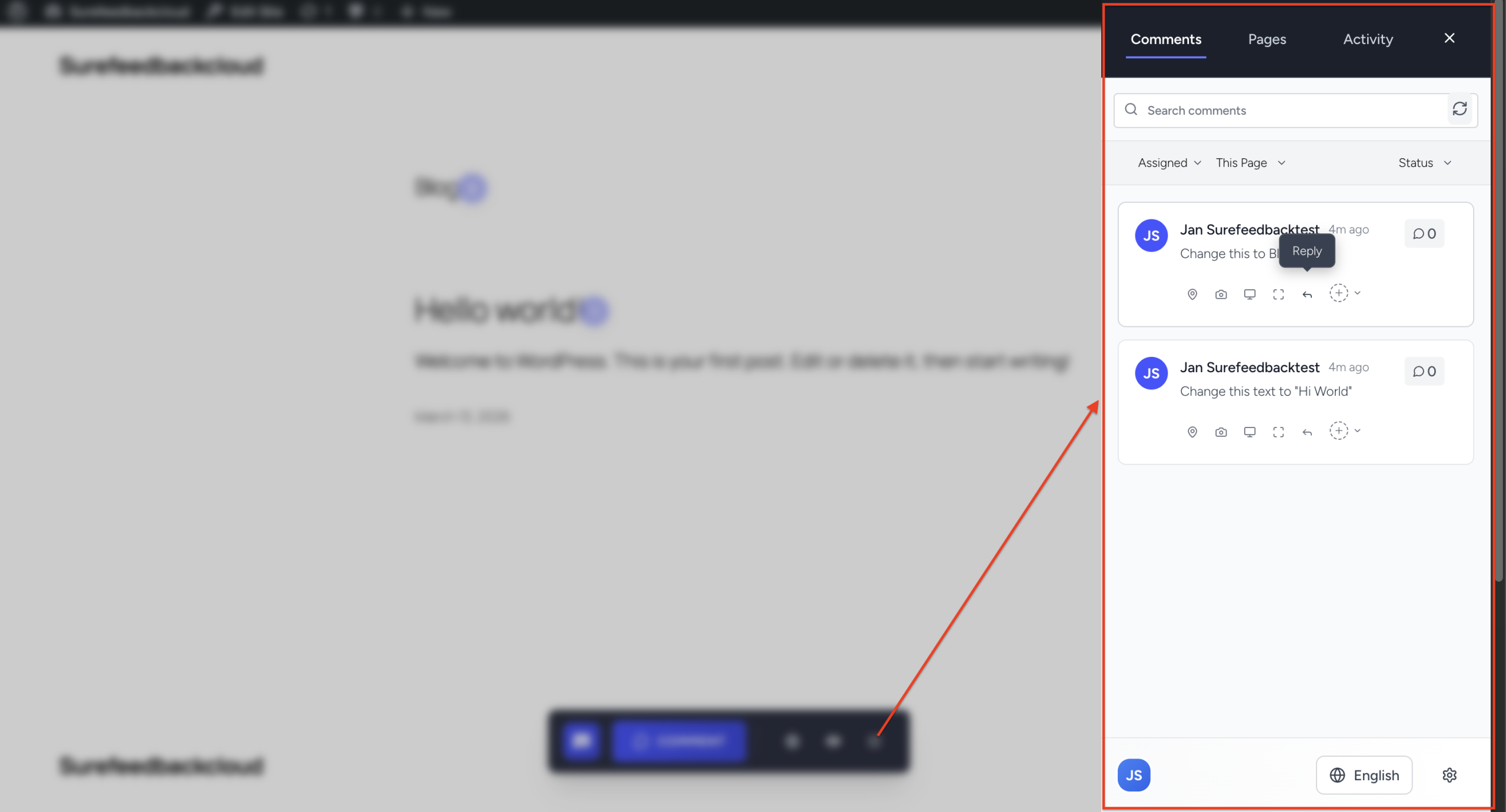
- Comments will appear as markers on the page
- You can click on any marker to view or reply
- Comments are also accessible from the SureFeedback dashboard
Troubleshooting
If you are unable to add comments:
- Make sure you opened the site using the Access Link
- Ensure that the SureFeedback script or plugin is properly installed
- Check that you have the correct permissions to leave comments
Next Steps
Now that you can add comments, you can:
- Invite clients or team members to collaborate
- Assign tasks based on feedback
- Manage and track comments directly from your SureFeedback dashboard
Was this doc helpful?
What went wrong?
We don't respond to the article feedback, we use it to improve our support content.