
How to Connect a Non-WordPress Site
If your website is not built with WordPress, you can still connect it to SureFeedback Cloud by adding a small JavaScript snippet to your site. This allows SureFeedback to load the feedback tool on your pages so you and your clients can leave visual comments directly on the website.
Before You Begin
Make sure you have:
- Access to your SureFeedback Cloud dashboard
- Access to edit the HTML of your website
- Permission to add scripts to your site (via code editor, CMS, or tag manager)
Step 1: Add a New Site in SureFeedback
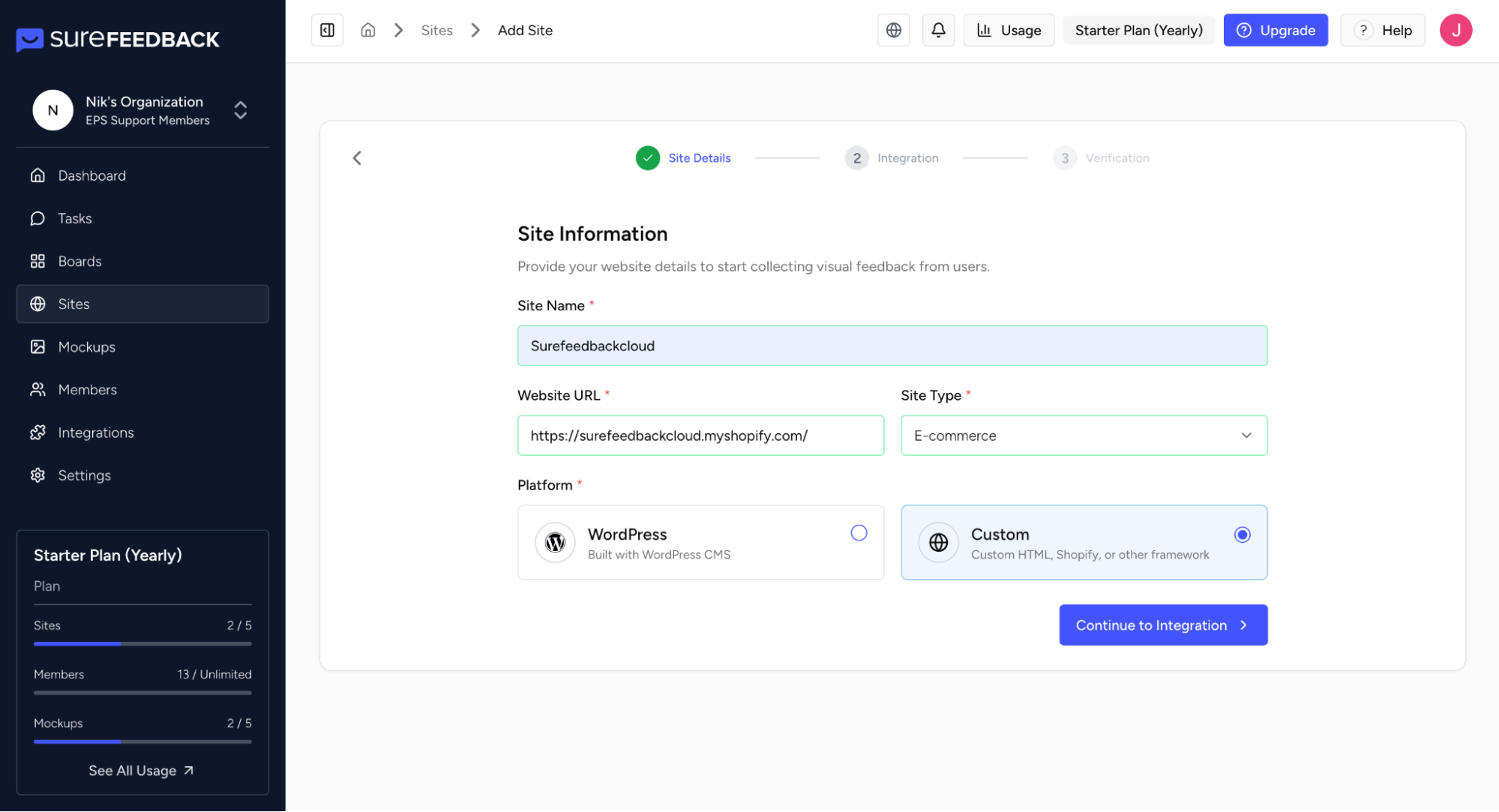
- Log in to your SureFeedback Cloud account.
- Go to the Sites section in your dashboard.
- Click Add New Site.
- Enter the URL of your website.
- Select Non-WordPress Site as the platform.
Step 2: Copy the Installation Script
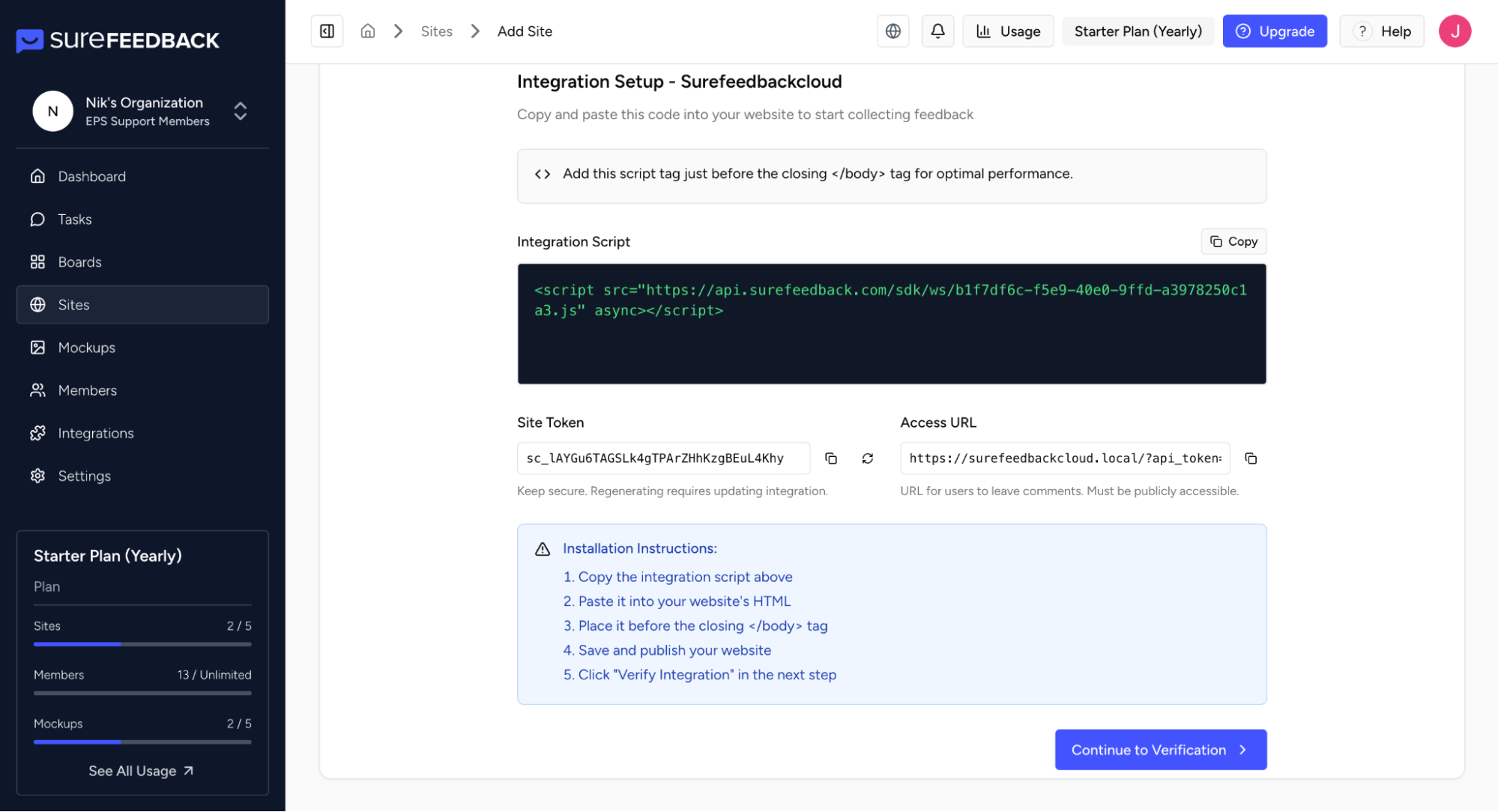
After creating the site, SureFeedback will generate a JavaScript installation snippet.
- Locate the script code provided in the setup screen.
- Click Copy Script to copy it to your clipboard.
This script connects your website to your SureFeedback workspace.
Step 3: Add the Script to Your Website
Next, add the copied script to your website’s HTML.
- Open your website’s code editor or CMS.
- Locate the closing </body> tag in your site’s HTML.
- Paste the SureFeedback script just before the closing </body> tag.
- Save and publish the changes.
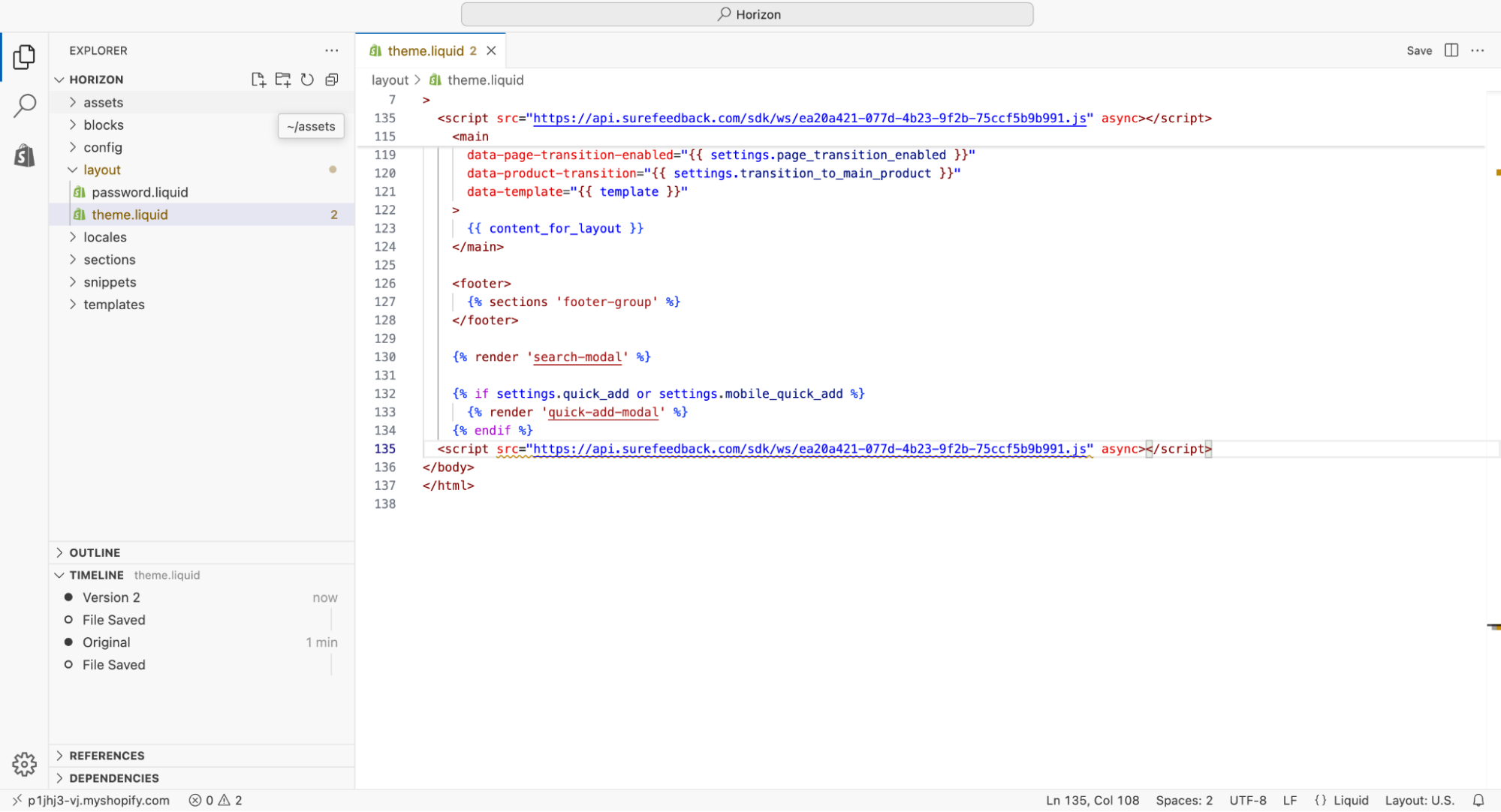
Note: The following screenshots are provided for reference purposes and were captured from a Shopify interface. Depending on your platform or setup, the layout and appearance may vary, but the steps will be similar.
Step 4: Verify the Connection
Once the script has been added:
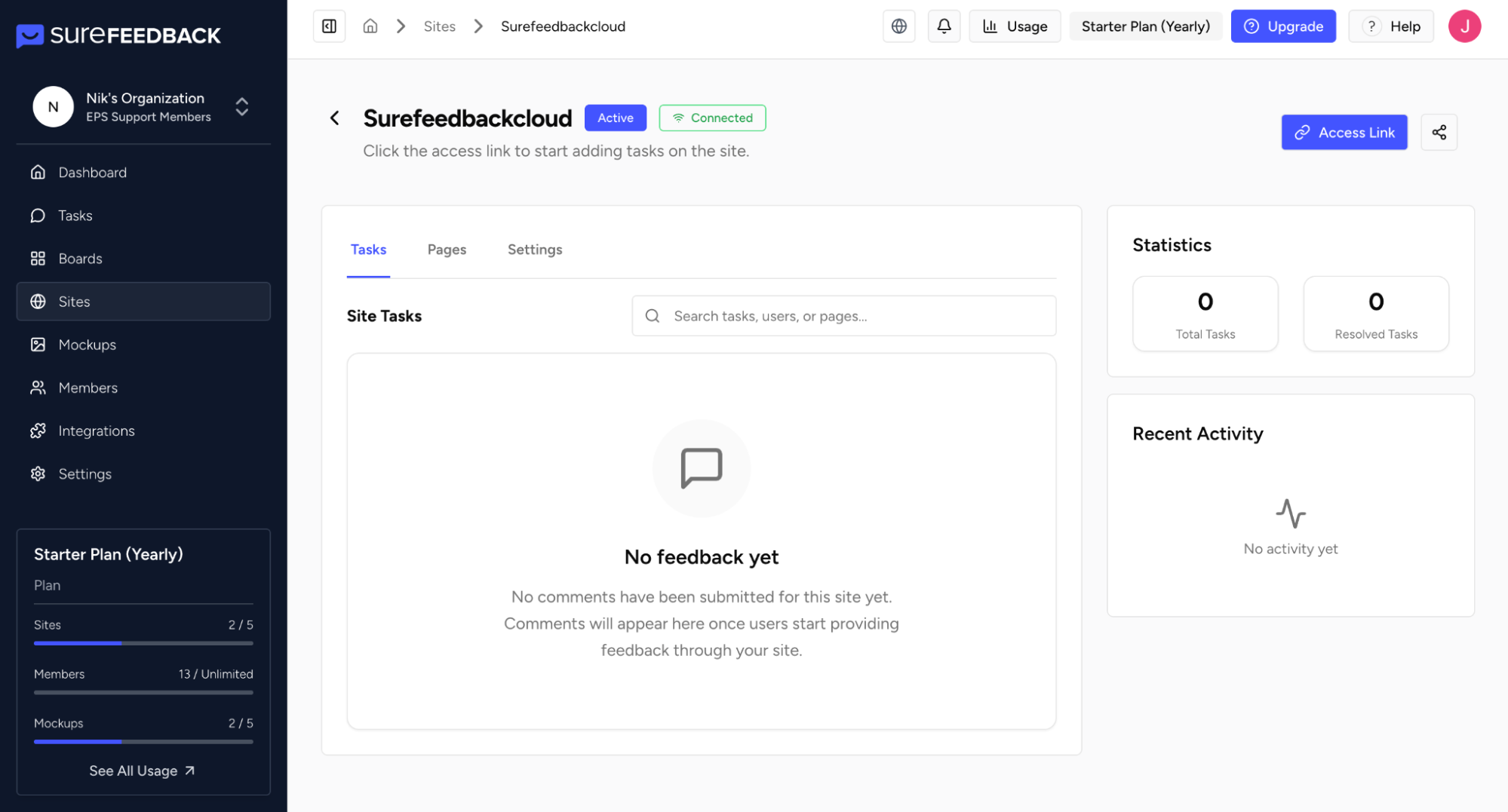
- Return to your SureFeedback Cloud dashboard.
- Refresh the page or check the Sites section.
- Confirm that your site is now connected.
Step 5: Start Collecting Feedback
After the site is connected:
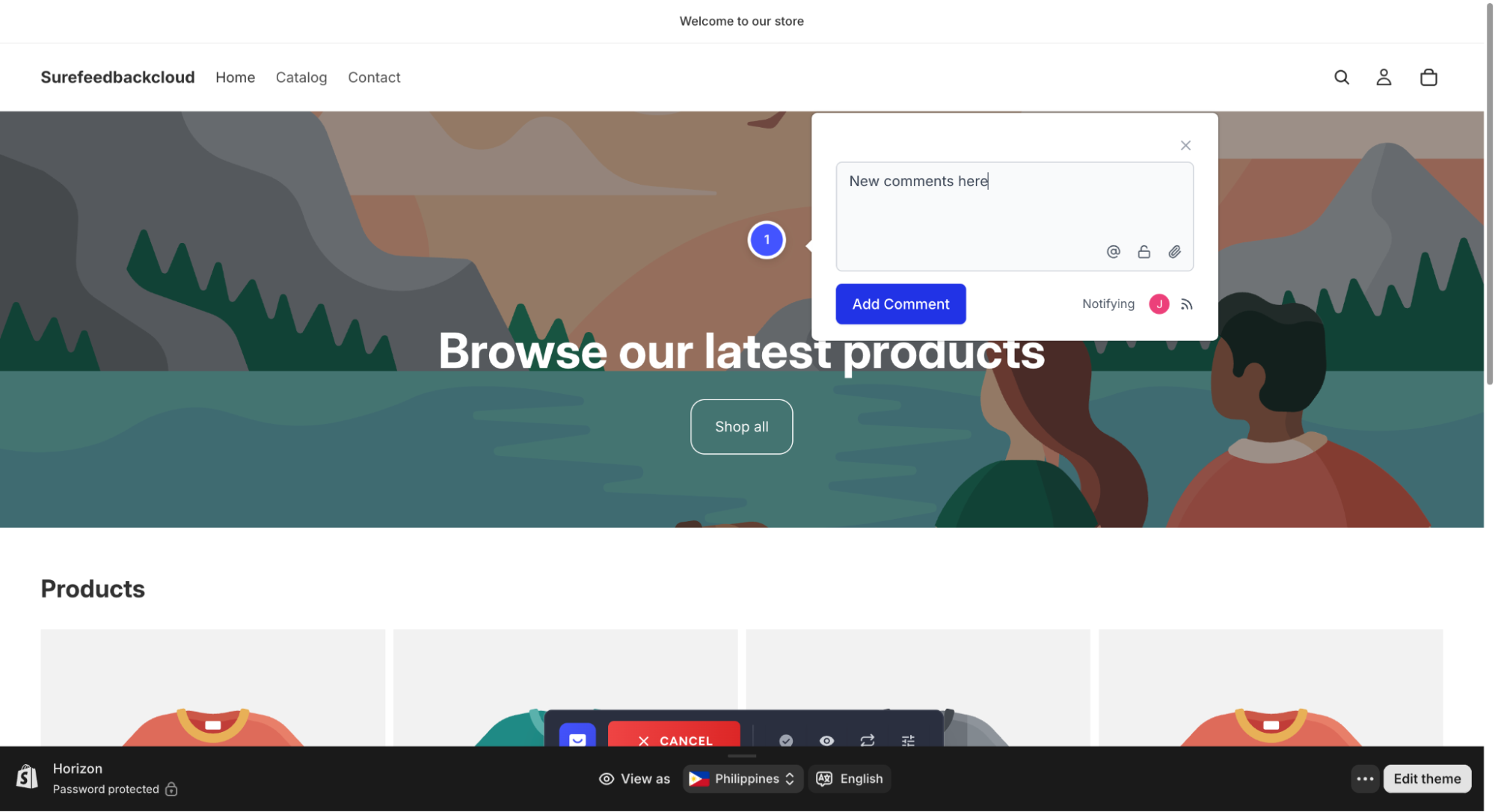
- You can open the site using the Access Link
- Invite clients or team members to leave feedback
- Start managing comments and tasks from the SureFeedback dashboard
Troubleshooting
If the site does not connect:
- Make sure the script was added correctly
- Confirm the script is placed before the closing </body> tag
- Clear your website cache or CDN cache
- Verify that the script is not blocked by security or optimization plugins
If the site does not connect after installing the plugin:
Next Steps
Once connected, you can:
- Invite collaborators to review the website
- Use Access Links to quickly access the feedback view
- Manage feedback and tasks directly in your SureFeedback Cloud dashboard
We don't respond to the article feedback, we use it to improve our support content.